CS2 launch options are Steam parameters that optimize Counter-Strike 2 performance by modifying how the game launches and runs. These powerful startup commands can deliver significant FPS improvement without hardware upgrades. Valve's Source 2 engine requires different optimization approaches compared to CS:GO, making proper launch option configuration essential for competitive advantage and smoother gaming experience.
Modern players combine launch option optimization with cs2 skins collection management and window mode selection to create the complete gaming experience.
What Are CS2 Launch Options and Console Commands?
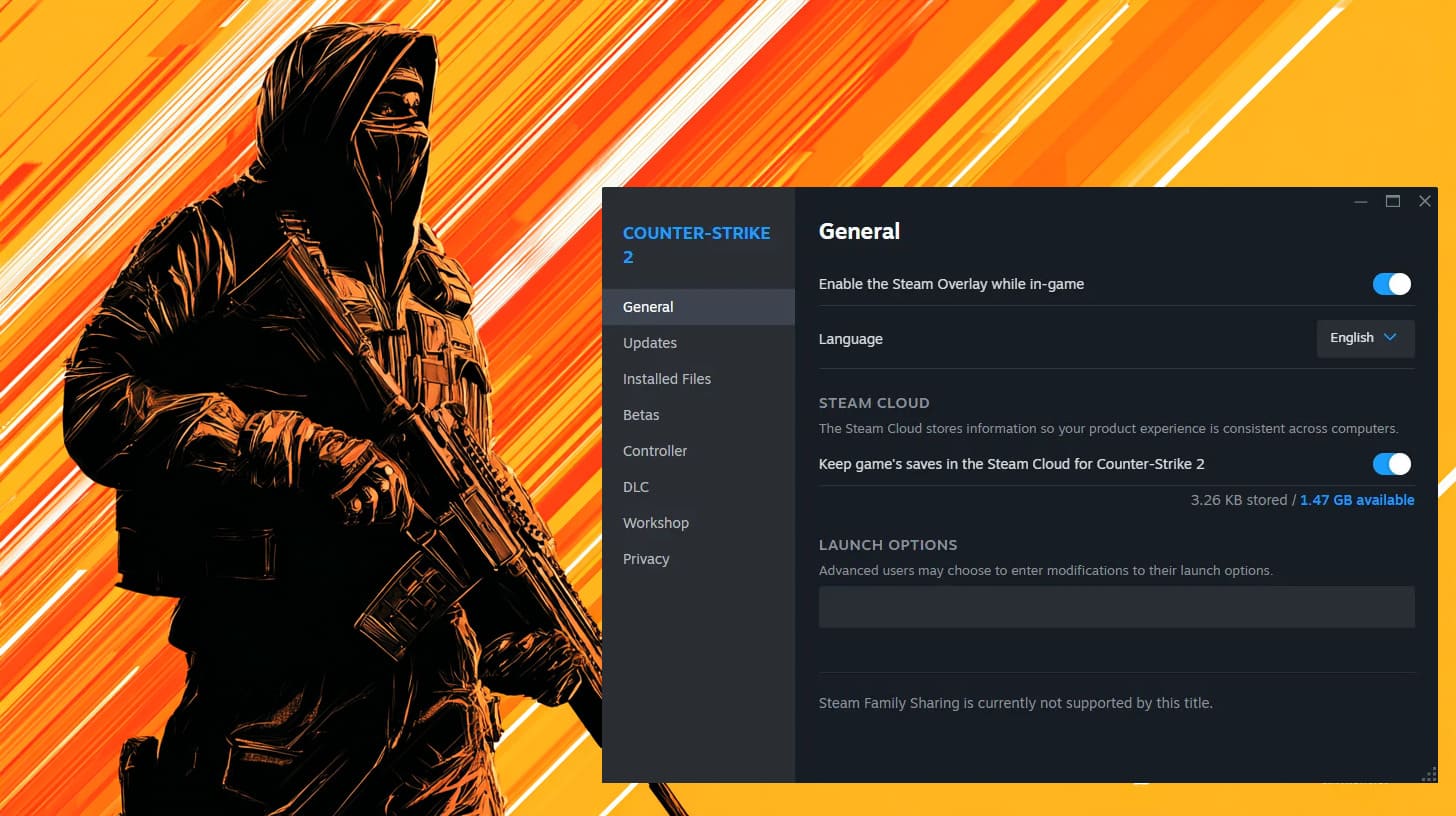
Launch options are Steam startup parameters that modify game initialization before CS2 loads. Console commands are in-game commands that change runtime behavior after loading. Launch options persist between sessions while console commands reset when you restart CS2.
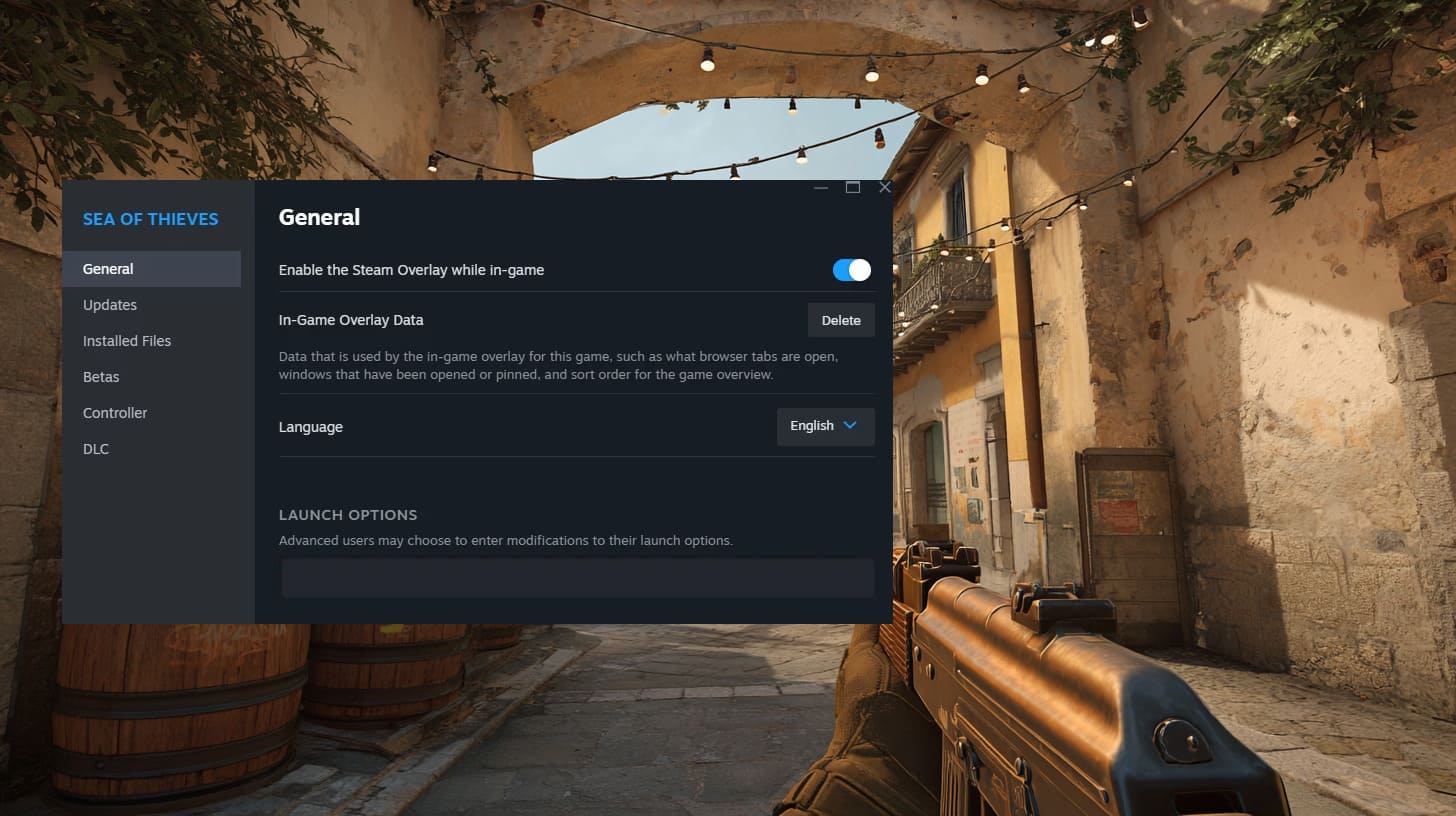
Access launch options through Steam: right-click CS2 → Properties → General → Launch Options field. Type your commands separated by spaces. Launch options start with "-" or "+" symbols and execute during game startup.
Counter-Strike history shows launch options evolved from the original 1999 version through CS:GO to modern CS2. The Source 2 engine changed how many commands function. Use launch options for persistent settings, console commands for temporary adjustments during gameplay.
Essential CS2 Launch Options for FPS Boost
Performance optimization starts with understanding which launch options actually improve CS2 performance. The Source 2 engine handles many settings automatically, but strategic command selection can boost frames per second significantly.
Modern CS2 launch options focus on graphics API selection, CPU optimization, and display configuration. Each command serves a specific purpose - avoid copying random launch option strings from outdated guides.
The fps_max command deserves special attention as it directly controls frame rate limitations. Setting +fps_max 0 removes all fps limitations, allowing your graphics card to render maximum frames per second. However, extremely high frame rates can cause input lag on some systems.
Memory management plays a crucial role in CS2 performance optimization. Launch options like -nojoy free up system resources by disabling unnecessary hardware support. The -console launch option provides immediate access to the developer console, essential for advanced CS2 configuration.
Graphics API Options (-vulkan vs -dx12)
Graphics APIs determine how CS2 communicates with your graphics card. The -vulkan launch option switches from default DirectX 11 to Vulkan rendering. This change can improve performance by 5-15% on compatible systems.
AMD graphics cards typically benefit more from -vulkan than NVIDIA cards. Test this launch option carefully - some systems experience crashes or rendering issues. The -dx12 command may work on some systems but results vary significantly. The fancy blending effects work differently under Vulkan compared to DirectX 9 legacy systems.
Remove -vulkan immediately if you encounter game crashes or visual glitches. The default DirectX 11 provides stable performance across all modern graphics cards. System compatibility varies significantly with Vulkan rendering, and texture quality may appear different between APIs.
Using this command makes CS2 prioritize graphics API efficiency over compatibility, which can improve cs2 skins rendering quality significantly when the system supports advanced rendering features.
CPU Optimization Commands (-high, -threads)
The -high launch option sets CS2 as high priority process, allocating more CPU resources to the game. This command can improve performance on systems running multiple applications simultaneously.
Modern CS2 handles thread optimization automatically, making -threads command unnecessary. The Source 2 engine efficiently manages multicore processing without manual thread specification. Intel and AMD processors both benefit from automatic thread allocation.
The -nojoy command disables joystick support, freeing minimal system resources. This launch option helps prevent potential input conflicts on gaming systems.
Display and Resolution Options
The -fullscreen launch option forces cs2 to start in fullscreen mode, potentially improving performance over window modes. Most players enable fullscreen through in-game settings, making this launch option redundant for window management.
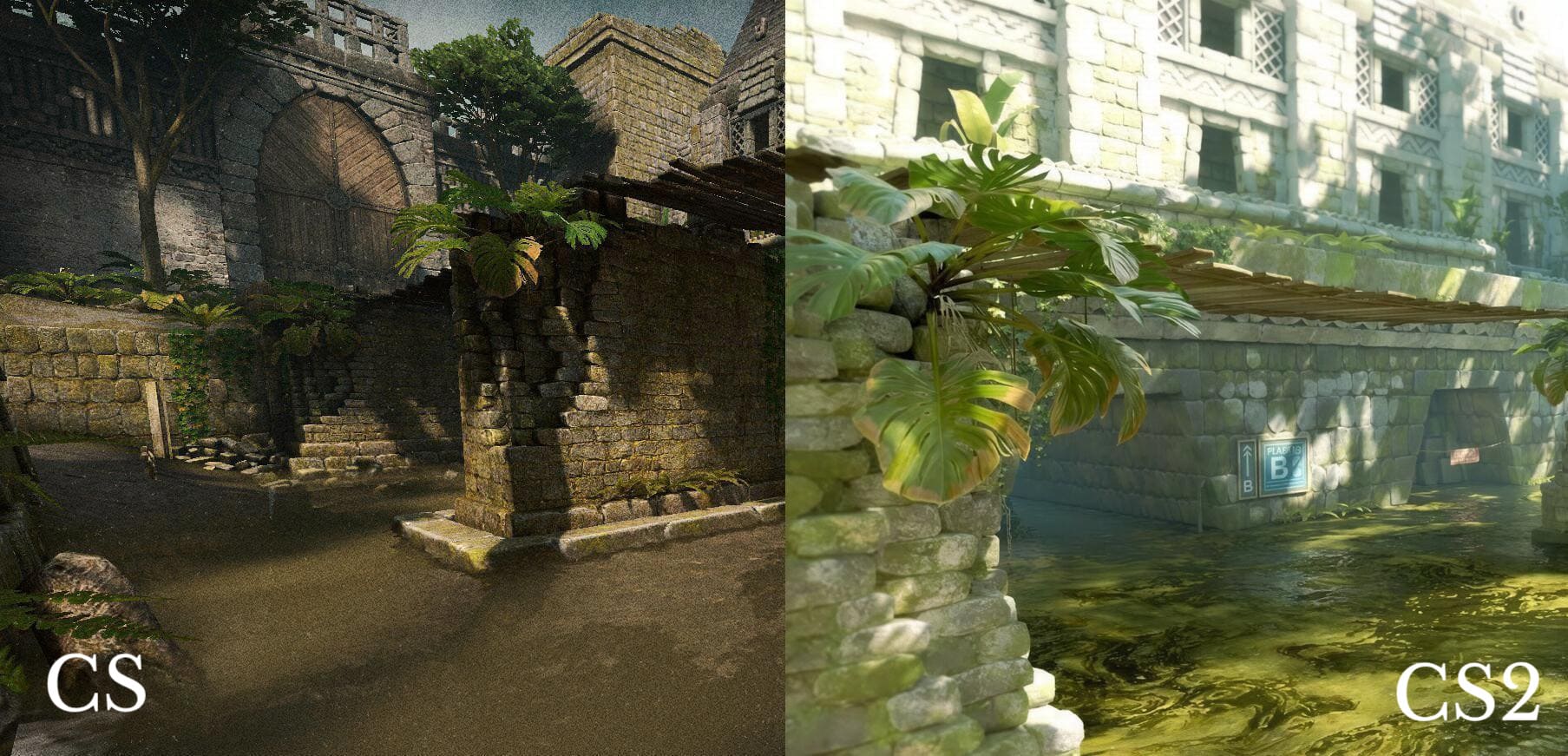
Resolution commands -w and -h set specific width and height values. For competitive play, many professionals use 4:3 aspect ratios with custom resolutions. The -refresh command sets monitor refresh rate, crucial for 144Hz and 240Hz displays. Standard 60hz monitors require -refresh 60 to prevent display conflicts.
Multi-monitor setups benefit from specific launch options that prevent window positioning issues. Test resolution changes carefully to avoid display problems. The multicore processing benefits work best when window mode doesn't interfere with system resources.
CS2 will take advantage of higher refresh rates when properly configured through launch options. Some texture streaming optimizations work better in fullscreen mode compared to windowed configurations. Low violence mode can be enabled through +violence_hblood 0 for regions requiring content filtering.
| Command | Function | Performance Impact |
|---|---|---|
| -vulkan | Switches to Vulkan API | 5-15% FPS boost (AMD cards) |
| -high | High CPU priority | Moderate improvement |
| -fullscreen | Forces fullscreen mode | Minor FPS gain |
| +fps_max 0 | Removes FPS limitations | Significant boost |
| -nojoy | Disables controller support | Minimal optimization |
Hardware-Specific CS2 Launch Options
Different hardware configurations require tailored launch option approaches. High-end systems focus on maximizing visual quality while maintaining performance. Mid-range setups balance quality and frames per second. Low-end PCs prioritize performance over graphics.
High-End PC Optimization (RTX 4070+, 16GB+ RAM)
High-end gaming PCs can experiment with advanced launch options without stability concerns. The -vulkan command often provides FPS improvement on powerful graphics cards. Thread optimization remains automatic - avoid manual -threads specifications.
Maximum resolution settings work well with high-end hardware. Consider +fps_max values above 300 for high refresh rate monitors. Experimental features rarely cause issues on robust systems.
Focus on consistent frame delivery rather than peak FPS numbers. High-end configurations benefit from stable performance across all CS2 maps and situations. Advanced users can combine multiple launch options for compound performance benefits. Window management becomes crucial when streaming or recording gameplay, as launch options interact with capture software differently in fullscreen versus window modes.
Graphics card memory utilization becomes crucial with high-end systems. The -vulkan API often provides better memory management compared to DirectX 11, resulting in smoother frame times during intense firefights. High-end systems should prioritize frame consistency over absolute maximum fps numbers.
Premium cs2 skins collections display with enhanced visual quality when launch options optimize both performance and graphics fidelity. Window behavior affects how texture streaming works with different graphics APIs and system configurations.
Mid-Range PC Settings (GTX 1660/RTX 3060, 8-16GB RAM)
Mid-range systems require balanced launch option selection. Test -vulkan carefully - remove if performance decreases. Moderate +fps_max values around 144-240 work well for most mid-range setups.
The -high launch option can help when running additional software like Discord or streaming applications. Monitor system stability when using priority commands.
1080p resolution remains optimal for mid-range graphics cards. Consider hardware upgrades if launch options don't provide sufficient performance improvement.
Temperature management becomes critical with mid-range hardware running demanding launch option configurations. Monitor GPU temperatures when testing aggressive settings. Some launch options may increase power consumption, affecting system stability during extended gaming sessions.
Window management during gaming sessions becomes important for streamers who need to access other applications. CS2 skins collections require proper texture loading, which varies between different window modes and graphics API selections. The multicore rendering optimization works differently in fullscreen versus window configurations.
Low-End PC Performance Boost (GTX 1050/older, 8GB RAM)
Low-end systems need aggressive optimization through launch options. DirectX 11 (default) typically performs better than -vulkan on older graphics cards. Lower resolution options may be necessary for playable frame rates.
The +fps_max command should match your monitor's refresh rate to prevent unnecessary GPU load. Disable unnecessary features through launch options to prioritize stability over visual quality.
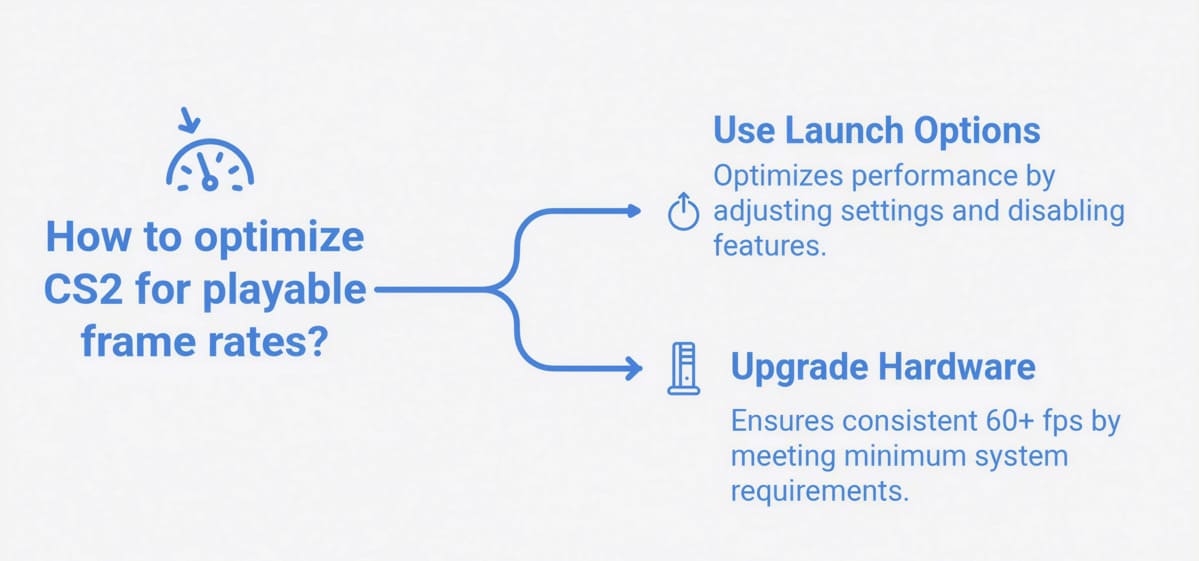
Consider upgrading hardware if launch options can't achieve 60+ fps consistently. CS2's minimum system requirements exceed many older gaming configurations.
Older systems benefit significantly from careful launch option selection. The -nojoy command becomes more valuable on systems with limited resources. Combining multiple optimization commands can yield cumulative performance benefits that make CS2 playable on aging hardware.
| Hardware Tier | Recommended Commands | Expected FPS Gain |
|---|---|---|
| High-End | -vulkan +fps_max 300 | 15-25% |
| Mid-Range | -high +fps_max 240 | 10-20% |
| Low-End | +fps_max 60 -nojoy | 5-15% |
Professional CS2 Launch Options and Config Files
Professional esports players approach launch options with scientific precision. Every command serves a specific competitive purpose. Top-tier professionals often combine optimized launch options with counter strike bets analysis to gain every possible advantage in competitive play.
Pro Player Launch Option Analysis
Professional players like s1mple, ZywOo, and sh1ro use minimal launch option sets. Common professional commands include -console for quick access and +fps_max values matching tournament standards.
Many professionals avoid experimental launch options that might cause instability during crucial matches. Consistency trumps marginal performance gains in competitive environments.
Tournament organizers often specify approved launch options. Professional players maintain multiple configuration profiles for different competitive scenarios.
Advanced Config File Management
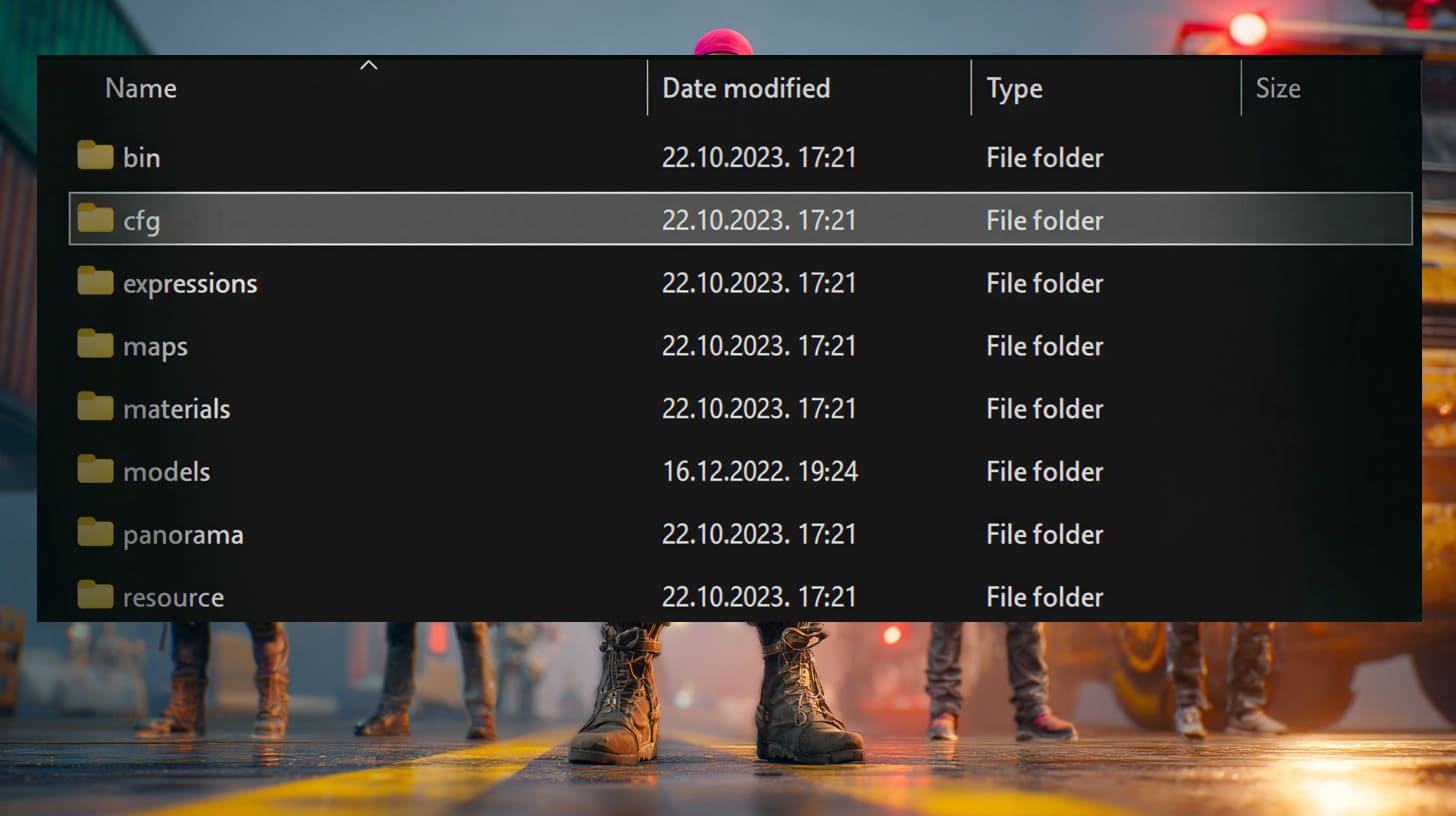
The autoexec file integrates seamlessly with launch options for comprehensive CS2 optimization. Place custom autoexec files in the Steam\steamapps\common\Counter-Strike Global Offensive\game\csgo\cfg folder.
Advanced scripting combines launch options with console commands for tournament-ready configurations. Version control helps manage different settings for various competitive scenarios. Professional teams maintain standardized launch option templates for consistency across all players.
Note that autoexec.cfg files load automatically in CS2, so adding +exec autoexec.cfg to launch options is unnecessary.
CS2 Performance Optimization Beyond Launch Options
Launch options form just one component of comprehensive CS2 performance optimization. In-game settings, network configuration, and system-level tweaks work together for maximum gaming experience enhancement.
Game Settings Integration
Launch options interact with in-game video settings in complex ways. Avoid conflicting configurations that might reduce performance or cause visual issues. Shader detail settings complement launch option graphics optimizations.
Texture streaming works alongside memory management launch options. Lighting optimization through in-game settings can enhance launch option performance gains. Test combinations systematically to find optimal configurations.
The multicore rendering setting should remain enabled to work with CPU optimization launch options. Coordinated settings produce better results than individual optimizations.
Network and Tickrate Optimization
CS2's sub-tick system eliminated traditional tickrate concepts for online matchmaking, but -tickrate 128 still works for local servers and offline games with bots. Network performance depends more on rate settings and interpolation values than launch options for competitive play.
Interpolation settings affect hit registration quality. Competitive server optimization requires understanding modern CS2 networking rather than legacy launch options. Window mode can affect network performance on some systems due to resource allocation differences.
Low latency network configurations work best when combined with appropriate launch options. The developer console provides access to network commands that complement startup optimization. Professional players optimize both launch options and network settings for competitive advantage.
Modern esports tournaments often provide standardized launch option templates to ensure fair competition. Players must adapt their cs2 skins selections and performance settings to tournament-approved configurations. The window behavior during tournaments requires specific launch option management for consistency.
| Setting Type | Launch Option Impact | In-Game Alternative |
|---|---|---|
| Network | Minimal | Console commands |
| Graphics | Moderate | Video settings |
| Audio | None | Audio settings |
| Input | Low | Input settings |
Troubleshooting CS2 Performance Issues
Launch options sometimes cause more problems than they solve. Systematic troubleshooting helps identify problematic commands and restore stable performance.
FPS Drops and Stuttering Solutions
Remove launch options one by one to identify performance culprits. Memory leak issues rarely stem from launch options but can be exacerbated by certain commands. The -autoconfig command resets configurations to default values.
Modern CS2 performance issues often originate from hardware limitations rather than configuration problems. Launch options can't overcome fundamental system bottlenecks.
Display and Refresh Rate Problems
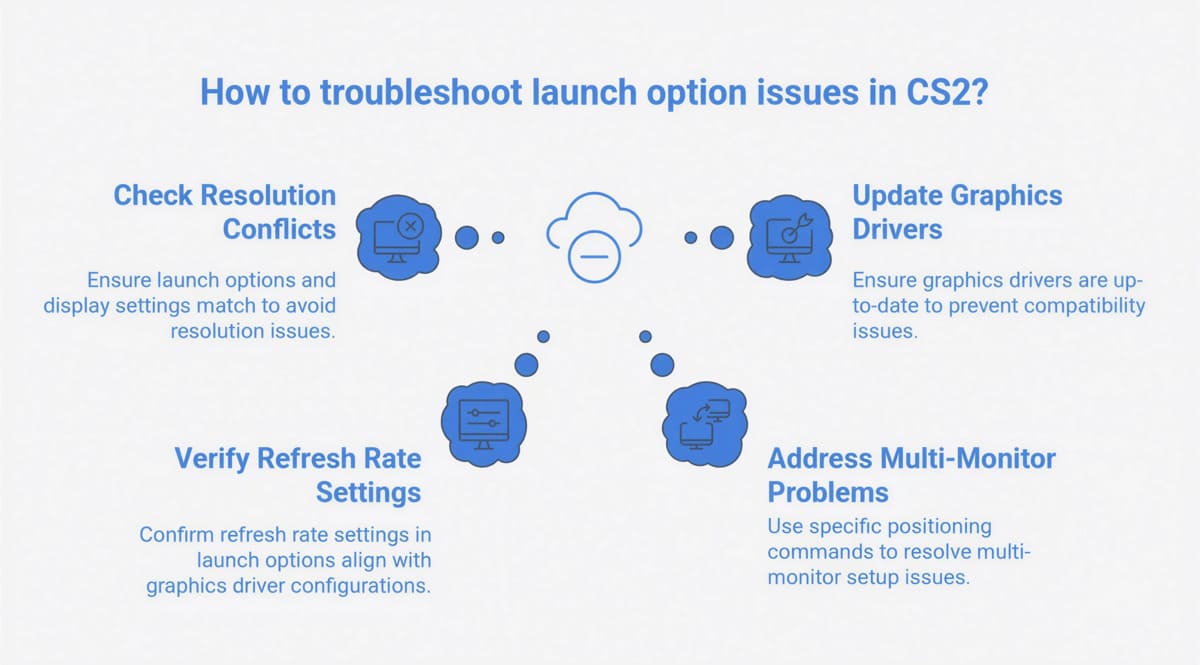
Resolution conflicts arise from mismatched launch options and display settings. Refresh rate forcing through launch options may conflict with graphics driver configurations. Multi-monitor problems require specific positioning commands.
GPU driver compatibility varies with different launch option combinations. Common error messages indicate specific launch option conflicts. Update graphics drivers before troubleshooting launch option issues.
The -windowed and -fullscreen commands may not function as expected in CS2. Use in-game video settings for reliable display mode control instead of launch options.
Complete Launch Options Command Reference
Understanding every working CS2 launch option prevents confusion and optimization mistakes. This comprehensive reference distinguishes between functional commands and obsolete CS:GO options.
Working Launch Options:
- -console: Enables developer console access for advanced configuration
- -novid: Skips intro video sequence, saving startup time
- -high: Sets high process priority for better CPU resource allocation
- -nojoy: Disables joystick support, freeing system memory
- +fps_max [value]: Sets frame rate limit or removes restrictions with 0
- -vulkan: Switches to Vulkan graphics API for potential performance gains
- -dx12: Attempts DirectX 12 mode (experimental, system-dependent)
- -fullscreen: Forces cs2 into fullscreen mode startup for better performance
- -refresh [rate]: Sets display refresh rate for high-Hz monitors
- -w [width] -h [height]: Custom resolution settings for competitive play
- +violence_hblood 0: Reduces blood effects and enables low violence mode (may not work on all systems)
- +fps_max 0 -nojoy: Combined command for maximum performance optimization
Obsolete Commands (Don't Use):
- -d3d9ex: DirectX 9 mode unavailable in CS2 using DirectX 11
- -limitvsconst: Vertex shader limits don't work with modern rendering
- -threads [number]: Automatic thread management superior to manual settings
- -no-browser: Browser component removal not applicable in CS2
- +mat_disable_fancy_blending 1: Texture quality reduction command from CS:GO era
Limited Use Commands:
- -tickrate 128: Works for local servers and offline games with bots, but not online matchmaking due to sub-tick system
Potentially Harmful Options:
- -allow_third_party_software: May affect trust factor and matchmaking
- -insecure: Disables anti-cheat protection, risks account security
Legacy CS:GO guides frequently recommend obsolete commands that provide no benefit in modern CS2. Always verify launch option compatibility before implementation. The window mode selection makes cs2 behavior different across various display configurations.
The key principle: if you don't understand what a specific launch option does, don't use it. CS2's default configuration handles most optimization automatically through the Source 2 engine. Players often store launch options in a dedicated folder for easy backup and restoration.
Testing methodology matters more than blindly adding commands. Monitor fps changes, system stability, and competitive performance when evaluating launch option effectiveness. Remove any command that doesn't provide measurable improvement or causes instability issues. Quality cs2 skins display better with properly configured launch options that optimize both performance and visual fidelity.
Conclusion
The best CS2 launch options for immediate impact are +fps_max 0, -console, and -novid. Hardware-specific optimization requires testing different combinations systematically. Remember that modern CS2 handles most optimizations automatically - avoid overcomplicating your launch option setup.
Test each launch option individually to measure real performance improvement. Not every system benefits from the same commands. Focus on commands that provide measurable fps boost rather than theoretical advantages.
Start with basic launch options and gradually add advanced commands only if needed. Your gaming experience improvements will come from understanding how each command affects your specific hardware configuration. Window behavior testing across different launch option combinations helps identify the most stable performance setup.
Many players enjoy customizing their cs2 skins alongside performance optimization, creating a personalized gaming environment. Window positioning through launch options can enhance multi-monitor workflows while maintaining competitive performance standards.