Nicolai "dev1ce" Reedtz runs his dev1ce CS2 settings on 800 DPI with 1.15 in-game sensitivity. That works out to 920 eDPI. He plays 1280×960 stretched on a 400 Hz ZOWIE XL2566X+. The crosshair stays Classic Static with a gap of -4.
This guide covers his mouse, crosshair code, video stack, viewmodel, config file, launch options, and full peripheral list. Every value matches ProSettings.net as of June 2026.
Dev1ce CS2 Mouse Settings
Dev1ce builds his mouse setup around precision over speed. AWPers survive on pixel-perfect flicks at long range, and the entire input chain serves that goal.
Dev1ce's precision-over-speed philosophy is also what makes him one of the most studied AWPers on CS2 betting platforms like PLG.bet. His consistency at 920 eDPI translates directly into predictable, high-value performance across maps.
Setting |
Value |
Mouse |
Logitech G Pro X2 Superstrike |
DPI |
800 |
In-Game Sensitivity |
1.15 |
eDPI |
920 |
Zoom Sensitivity |
1.0 |
Mouse Acceleration |
Off |
Polling Rate |
1000 Hz |
Raw Input |
On |
Sensitivity and eDPI Breakdown
eDPI multiplies DPI by in-game sensitivity. The number gives a hardware-independent way to compare aim speed between players. Dev1ce sits at 920 (800 × 1.15), within the typical AWPer range. Players much higher than that should drop in 20% steps, with five deathmatch sessions per step.
Polling Rate and Mouse Acceleration
Polling rate counts how many times per second the mouse reports position. Dev1ce runs 1000 Hz, the pro standard. Mouse acceleration stays off in CS2 and Windows. Leave it on and every flick produces a different output for the same physical movement.
Dev1ce CS2 Crosshair Settings
Dev1ce's crosshair follows the same logic as his sensitivity: small, static, out of the way. Less visual clutter means more pixels for the enemy model and a cleaner pre-aim line through smokes and corners. A dynamic crosshair expands with every step and shot, compounding tiny aim corrections over thousands of rounds into measurable accuracy loss.
Crosshair Code and Manual Configuration
Dev1ce's crosshair share code: CSGO-QVJA3-eFyR4-wjv9e-x3tNO-DqmHB
Open CS2 → Settings → Game → Crosshair → Share or Import. Paste the code and click Apply. The equivalent console commands:
cl_crosshairstyle 4cl_crosshairsize 1cl_crosshairgap -4cl_crosshairthickness 1cl_crosshairdot 0cl_crosshair_drawoutline 0cl_crosshairalpha 255cl_crosshaircolor 5cl_crosshaircolor_r 0cl_crosshaircolor_g 250cl_crosshaircolor_b 150
The cl_crosshaircolor 5 line activates the custom RGB values that follow. Skip it and the color stays default.
Why Dev1ce's Crosshair Works for AWPers
A static crosshair stays the same size regardless of movement or fire. With a negative gap of -4, the four lines pull tight around a single pixel of empty space. The result frames an enemy head without hiding it. The bright spring green (RGB 0/250/150) reads against dust, sand, and dark Mirage corners.
Across CS:GO and CS2 demo footage, one pattern stands out: dynamic crosshairs reward movement visually, training players to walk-shoot. Static crosshairs train players to stop, then click.
Dev1ce CS2 Video and Resolution Settings
His visual stack works as three layers. CS2 in-game settings, the ZOWIE XL2566X+ OSD, and the NVIDIA driver layer on his GeForce RTX 4090 each pull a different lever. Change only one and performance stays on the table.
Resolution and Aspect Ratio
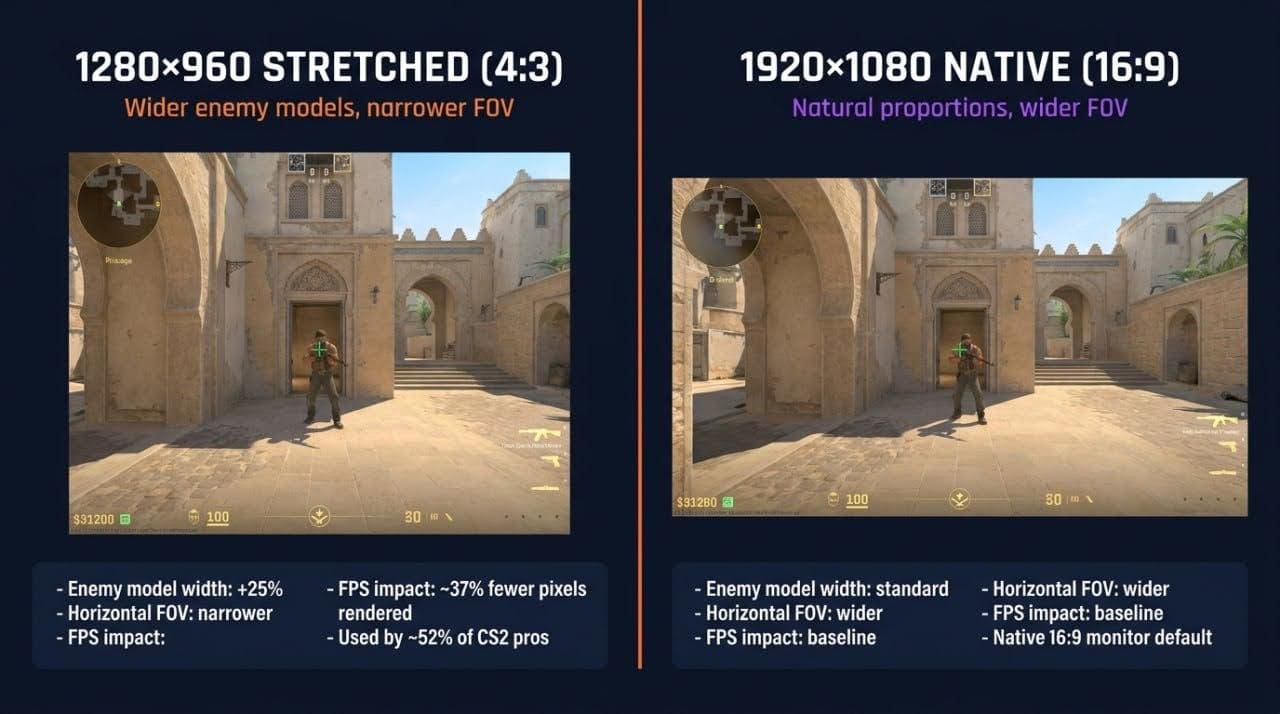
Dev1ce plays 1280×960 stretched on his ZOWIE XL2566X+. Stretched 4:3 widens enemy models and lifts frame rate over 1920×1080 native. The trade-off is a narrower field of view. Players on sub-144 Hz monitors should fix the refresh rate first.
Advanced Video Settings
- Shader Detail: Low
- Model/Texture Detail: Low
- Particle Detail: Low
- Global Shadow Quality: High
- Multisampling Anti-Aliasing: 2× MSAA
- Ambient Occlusion: Medium
- Texture Filtering: Anisotropic 16×
- Vertical Sync: Off
Low details on shader, model, and particles reduce visual noise around player models. Dev1ce keeps the heavy filters minimal even on his RTX 4090, prioritizing competitive clarity over visual fidelity.
Monitor Settings (OSD Configuration)
A recommended OSD baseline on the ZOWIE XL2566X+:
- Picture Mode: FPS 1
- Brightness: 100
- Contrast: 59
- Sharpness: 10
- Color Vibrance: 15
- Black eQualizer: 10
- DyAc+: Premium
Black eQualizer lifts shadow detail without washing the picture, surfacing enemies in dark smoke earlier than defaults.
NVIDIA Control Panel / Graphics Card Settings
Driver-level settings sit between the GPU and the CS2 renderer. The only NVIDIA panel value verified for dev1ce is Digital Vibrance at 100%. The following pro-standard panel values pair well with his stack on the GeForce RTX 4090:
- Digital Vibrance: 100% (verified)
- Texture Filtering Quality: High Performance
- Low Latency Mode: On
- Vertical Sync: Off
- Power Management: Prefer Maximum Performance
- Maximum Pre-Rendered Frames: 1
Maxing Digital Vibrance saturates color so enemy models pop. The setting applies to any NVIDIA GPU, not only dev1ce's RTX 4090.
Dev1ce CS2 Viewmodel Settings
Most players never touch viewmodel commands and leave value on the table. Dev1ce pushes his weapon right and down, opening the screen on his dominant peeking side:
viewmodel_fov 68viewmodel_offset_x 2.5viewmodel_offset_y 0viewmodel_offset_z -1.5viewmodel_presetpos 2
How Viewmodel Affects Spatial Awareness
A centered viewmodel hides screen space exactly where AWPers hold tight angles. Push the model right and visible playspace on the left grows. Watch his peeks on Mirage Window and Nuke Ramp and the alignment becomes clear: his viewmodel never crosses the line he holds.
Dev1ce CS2 Launch Options and Config
A config file (.cfg) stores sensitivity, crosshair, viewmodel, and binds in one place. Launch options pass commands to CS2 before the engine starts. The biggest mistake in 2026 is pasting an old CS:GO config into CS2. Valve dropped or renamed several commands in the engine transition, and many of them fail silently when not cleaned out.
Dev1ce's launch options:
-console(opens developer console on launch)-novid(skips intro video)+exec myconfig.cfg(loads your config at start)
Dev1ce Config File (device.config) Explained
To install a CS2 config file:
- Steam → right-click Counter-Strike 2 → Manage → Browse local files.
- Open
\game\csgo\cfg\. - Create or paste
myconfig.cfgwith the commands inside. - Save the file.
- Launch CS2 and type
exec myconfigin the console. - Verify in Settings → Keyboard/Mouse.
Legacy CS:GO commands like r_drawtracers_firstperson and several mat_* flags silently fail in CS2. Strip them from any device.config file copied from older sources.
Key Keybinds and Command Settings
bind "space" "+jump"bind "shift" "+speed"bind "ctrl" "+duck"bind "v" "+jumpthrow"
The jumpthrow bind takes 30 seconds to set up and removes the largest source of inconsistent grenades in matches. Few config changes pay back inside a single deathmatch session like this one does.
Who Is Dev1ce? Career Context That Makes His Settings Worth Studying
Dev1ce is a Danish AWPer, born September 8, 1995, currently signed to 100 Thieves. His career moved from Astralis (2016 to April 2021) through Ninjas in Pyjamas (April 2021 to October 2022), then back to Astralis. He signed with 100 Thieves in 2026.
His core sensitivity, crosshair, and video values stayed within a narrow range. That consistency held through every roster move and the engine shift from CS:GO to CS2.
Astralis with dev1ce won four CS:GO Majors between 2017 and 2019. Major MVP honors came at FACEIT London 2018 and StarLadder Berlin 2019 (Magisk took the MVP at IEM Katowice 2019). ProSettings credits him with the record for Top 20 Players of the Year appearances, with eight entries on the list. He was never named the year's number-one player.
Dev1ce's Key Tournament Achievements
| Tournament | Year | Placement | Team |
| ELEAGUE Major Atlanta | 2017 | 1st | Astralis |
| FACEIT Major London | 2018 | 1st (MVP) | Astralis |
| ELEAGUE CS:GO Premier | 2018 | 1st | Astralis |
| IEM Chicago | 2018 | 1st | Astralis |
| IEM Katowice Major | 2019 | 1st | Astralis |
| StarLadder Berlin Major | 2019 | 1st (MVP) | Astralis |
| Intel Grand Slam Season 1 | 2018 | Won | Astralis |
Across every result above, his sensitivity, crosshair, and viewmodel values stayed within a narrow range. The Astralis era HLTV rankings consistently placed dev1ce in the Top 5 from 2017 through 2019. The same core configuration carried him through every Major final on the list.
Career Highlights at a Glance
- 4× CS:GO Major champion
- 2× Major MVP (FACEIT London 2018, StarLadder Berlin 2019)
- Record-holding HLTV Top 20 appearances
- Intel Grand Slam Season 1 winner
The same core config carried him through Astralis's title-winning era and on into the CS2 years.
Dev1ce's Peripherals and CS2 PC Setup
Every product in his stack shares one trait: low input latency. Light mouse, high-refresh monitor, hall-effect keyboard, wireless headset. Each piece shaves milliseconds at the input layer.
| Category | Product | Key Spec |
| Mouse | Logitech G Pro X2 Superstrike | 61 g, HERO 2 sensor, 8000 Hz polling capable |
| Mousepad | ZOWIE G-TR | Cloth, control glide |
| Monitor | ZOWIE XL2566X+ | 400 Hz, 0.5 ms, TN panel |
| Keyboard | Wooting 60HE v2 Silver | 60% hall-effect, hotswappable |
| Headset | Razer BlackShark V3 Pro | Wireless, closed-back, noise canceling |
| Chair | Razer Iskur V2 NewGen | Adjustable lumbar, leatherette |
| Component | Specification |
| CPU | Intel Core i9-13900KF |
| GPU | NVIDIA GeForce RTX 4090 |
| RAM | 32 GB DDR5 |
| Storage | NVMe SSD |
| OS | Windows 11 |
Mouse, Mousepad, and Monitor
Dev1ce's mouse, the Logitech G Pro X2 Superstrike, weighs 61 g and supports the low-sens flicking AWPers need. His ZOWIE G-TR mousepad delivers a control-oriented glide that pairs cleanly with the low eDPI. Any 240 Hz monitor with 1 ms response time competes at the same level for CS2, regardless of brand.
Keyboard, Headset, and Chair
The Wooting 60HE v2 Silver uses hall-effect switches with adjustable actuation, which let dev1ce tune key sensitivity per-bind for movement keys. The Razer BlackShark V3 Pro headset runs wireless with active noise cancellation. Stereo separation locates enemy footsteps inside a second. Comfort, not performance, drives the Razer Iskur V2 NewGen chair pick.
PC Specifications
CS2 is CPU-bound at competitive frame rates. The Intel Core i9-13900KF and NVIDIA GeForce RTX 4090 mark dev1ce's ceiling, not the floor any player needs. A modern mid-range CPU paired with 16 GB of RAM hits the 300+ FPS that 240 Hz monitors actually display.
Should You Copy Dev1ce's CS2 Settings? Expert Analysis
Most intermediate players copy a pro config in one sitting and expect rank gains in a week. They get worse instead. Pro settings get tuned for pro hardware. Muscle memory across thousands of hours and a specific team role do the rest.
Copy the crosshair, video, monitor, and NVIDIA settings directly. Adapt sensitivity gradually instead of all at once. Behind every number sits a reason, and the reason matters more than the number.
That same config consistency is what sharp observers track when they bet on CS2 at PLG.bet. A player whose settings have not changed across teams and titles is a player whose ceiling you can actually model.
How to Adapt Dev1ce's Settings to Your Own Playstyle
- Apply the crosshair code exactly as-is.
- Apply the video, monitor OSD, and NVIDIA settings wholesale.
- Shift your eDPI toward 920 in steps of no more than 20% at a time.
- Apply the launch options and config commands directly.
- Run at least five deathmatch sessions on each new step before evaluating.
FAQ
What are dev1ce's mouse settings in CS2?
What is dev1ce's CS2 crosshair code?
CSGO-QVJA3-eFyR4-wjv9e-x3tNO-DqmHB, a Classic Static design. Import via Settings → Game → Crosshair → Share or Import, paste, and click Apply.What resolution and video settings does dev1ce use in CS2?
What peripherals does dev1ce use for CS2?
How do I download or install dev1ce's CS2 config?
\game\csgo\cfg\ and paste a .cfg file with dev1ce's commands. Type exec myconfig in the console to apply. Several CS:GO commands no longer work in CS2 and must be stripped first.What are dev1ce's CS2 launch options?
-console -novid +exec myconfig.cfg, set in Steam → CS2 → Properties → Launch Options. The three flags open the developer console, skip the intro video, and load his config at startup.