Proper settings decide rounds before you spawn. In Counter-Strike 2, where milliseconds matter and FPS drops cost victories, configuration is non-negotiable. Professional esports players prove this daily through tested setups refined over thousands of matches.
This guide breaks down the best CS2 settings used by top professionals. From video configurations boosting frame rate to audio tweaks exposing enemy positions, you'll learn what works and why. By the end, you'll have a tournament-ready competitive gaming setup built for maximum performance.
Counter-Strike 2 Performance Settings Overview
Source 2 engine changed everything. Valve Corporation rebuilt Counter-Strike from the ground up, bringing improved graphics, updated lighting, and smoother physics. This evolution demands more from your CPU and graphics card than the original CSGO engine.
Frame rate directly impacts competitive performance. For 144Hz monitors, target at least 144 FPS minimum. For 240Hz displays, aim for 240+ FPS. Professionals push beyond 300 FPS even with 240Hz monitors because frame timing stays more consistent at higher values, reducing input lag and improving target tracking.
Higher FPS creates smoother mouse movement and cuts delay between actions and screen updates. Even if your monitor caps at 144Hz, running at 300 FPS improves responsiveness. This isn't placebo — it's measurable physics.
Optimization starts with understanding impact hierarchy. Global shadow quality, shader detail, and anti-aliasing drain FPS most. Texture detail barely affects modern graphics cards. Strip visual clutter while keeping essential information like shadows that reveal enemy positions.
Steam platform integration helps through NVIDIA Reflex, improving responsiveness on compatible hardware. AMD users get similar benefits via Radeon Anti-Lag. Professional tournament standards mandate stable 240 FPS minimums, fullscreen mode, and disabled overlays — if your setup can't match these, your configuration needs work.
Professional CS2 Video Settings Configuration
Resolution and Aspect Ratio Optimization
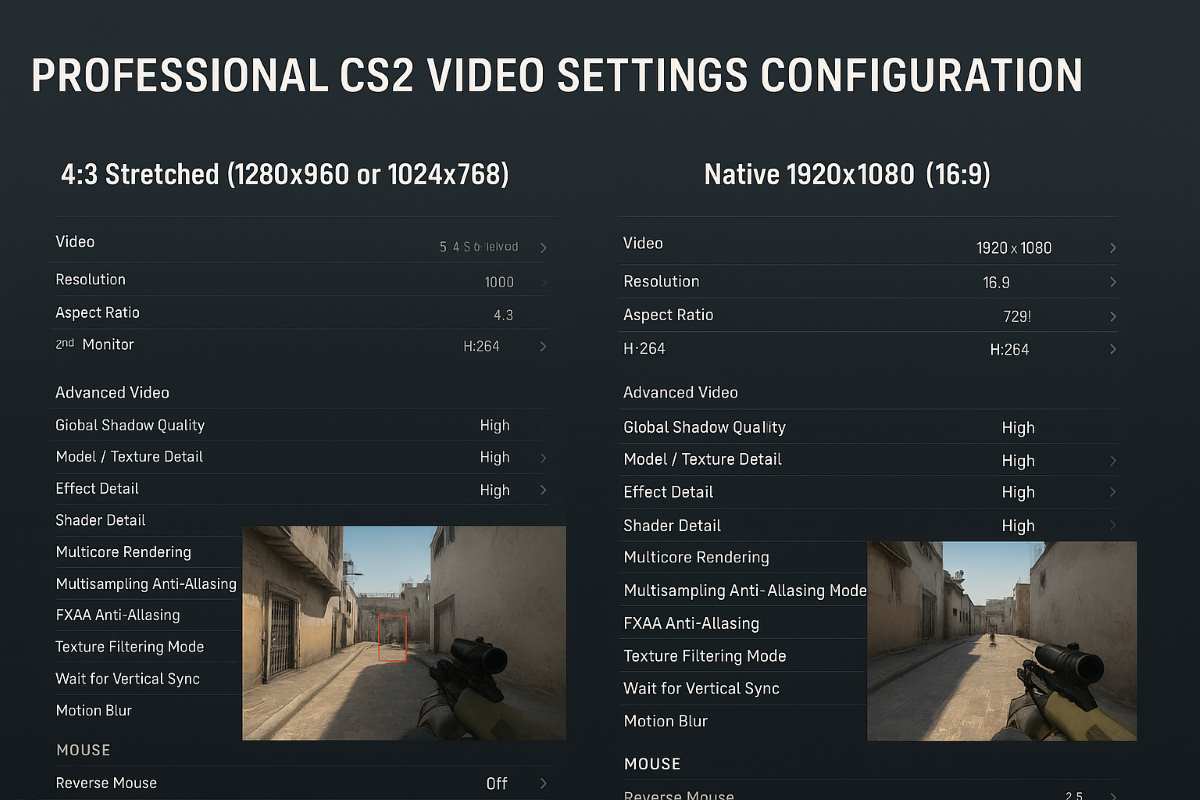
Resolution choice varies among professionals. Many use 4:3 stretched (1280×960 or 1024×768), while others prefer native 1920×1080 at 16:9. The tradeoff is clear: stretched 4:3 makes enemy models appear wider, easier to spot and track, but cuts horizontal field of view. Players like device prefer stretched for target size over peripheral vision.
Native 1920×1080 provides maximum visibility and sharpest image quality. Modern hardware handles it well, showing more battlefield information. The tradeoff is lower FPS and slightly smaller enemy models at distance. Players like s1mple and NiKo often use native resolution for the wider field of view.
16:10 at 1680×1050 offers middle ground — more horizontal space than 4:3 without full 16:9 stretch. Used by some professionals like karrigan and ropz seeking balance.
To enable 4:3 stretched, create custom resolution in NVIDIA Control Panel or AMD Radeon Software, then select in CS2. Set GPU scaling to fullscreen, not aspect ratio, avoiding black bars.
Advanced Video Settings for Maximum FPS
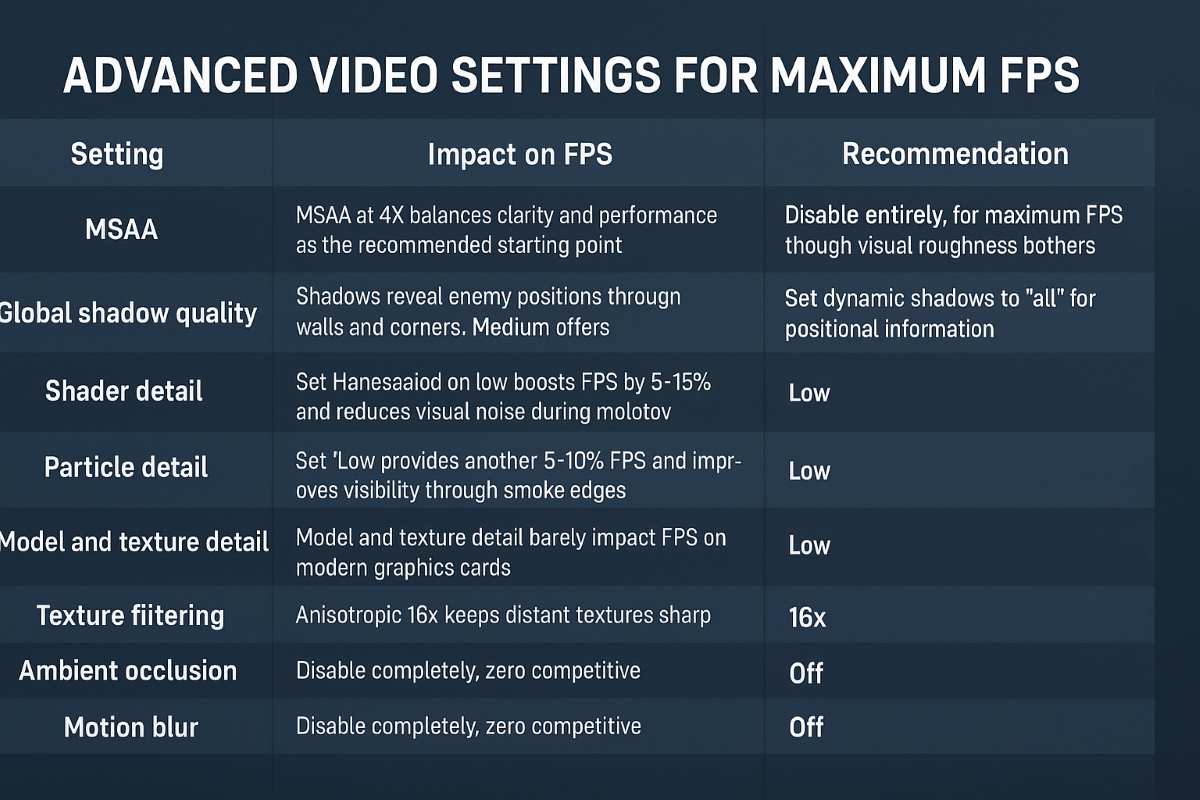
Each graphic setting impacts FPS differently. MSAA at 4X balances clarity and performance as the recommended starting point. Disable it entirely for maximum FPS, though visual roughness bothers most players. 2X MSAA offers middle ground if you need extra frames.
Global shadow quality is critical. Shadows reveal enemy positions through walls and corners. Medium offers best balance — shadows stay visible without crushing performance. Low can hide crucial intel. Set dynamic shadows to "all" for positional information.
Shader detail on low boosts FPS by 5-15% and reduces visual noise during molotov and smoke explosions. Particle detail at low gives another 5-10% FPS and improves visibility through smoke edges. Model and texture detail barely impact FPS on modern graphics cards — medium preserves skin quality, low squeezes extra frames.
Texture filtering at anisotropic 16x keeps distant textures sharp with minimal cost. Disable ambient occlusion and motion blur completely — zero competitive value. HDR on quality mode provides big visual upgrade over performance with minimal FPS impact. FidelityFX Super Resolution causes blurry images — disable unless desperate for frames.
NVIDIA Reflex and Anti-Aliasing Configuration
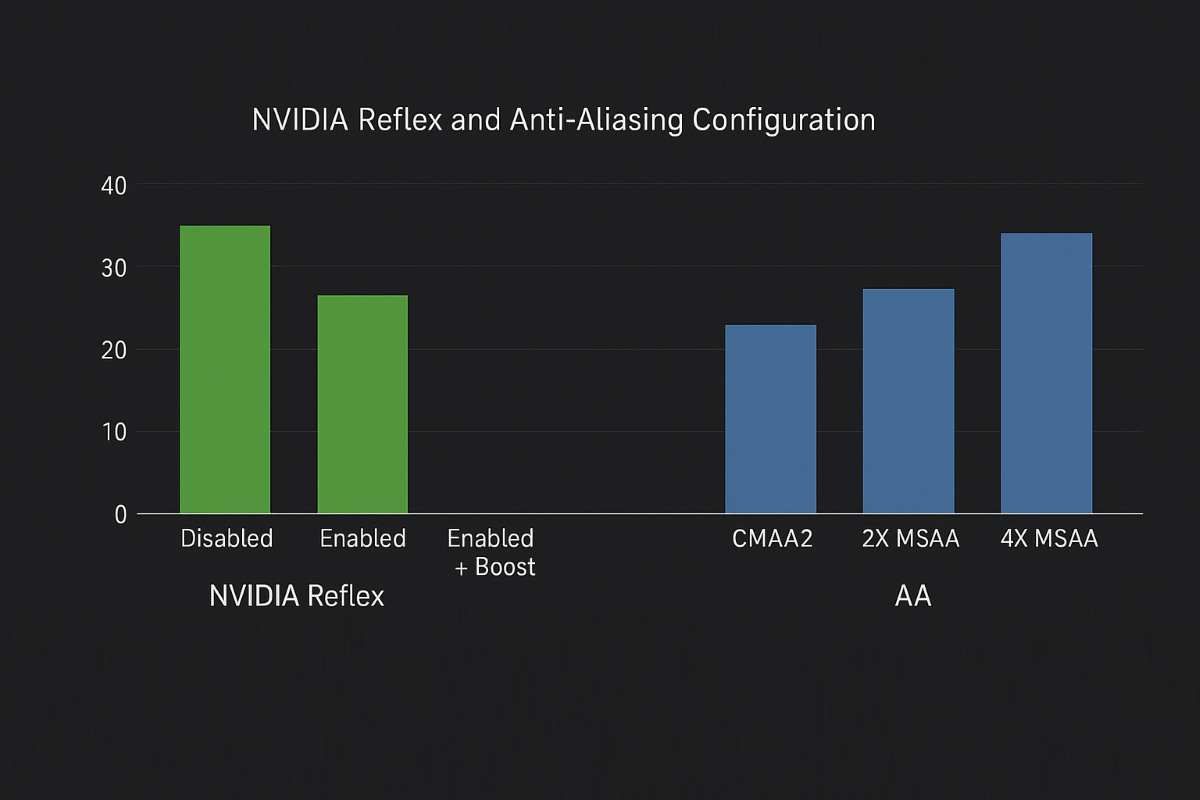
NVIDIA Reflex technology cuts system latency by synchronizing GPU and CPU frame rendering, improving 1% low FPS while costing only around 2% average FPS. Set to "enabled" for best results — "enabled + boost" forces higher GPU clocks but drains power with minimal extra benefit. AMD users should enable Radeon Anti-Lag in Radeon Software for similar latency reduction.
Anti-aliasing directly impacts visual clarity versus performance. CMAA2 offers fastest smoothing with least FPS cost, ideal for budget systems. 2X MSAA provides clearer edges through railings and fences, critical for spotting enemies on maps like Inferno. 4X MSAA is the recommended starting point, balancing visual quality and performance. 8X MSAA tanks performance with minimal visual improvement over 4X.
Most professionals run 4X MSAA, dropping to 2X if they need extra frames. Below 200 FPS consistently, consider CMAA2 or disable anti-aliasing entirely. G-Sync and FreeSync eliminate screen tearing but can add minor input lag — test with and without to determine if the smoothness benefits your play.
CS2 Audio Settings for Competitive Advantage
Sound wins rounds. Hearing footsteps, reloads, or grenade pins provides information your eyes can't. Counter-Strike 2's advanced 3D audio processing through Source 2 improves directional accuracy when configured correctly.
Master volume should sit between 50-100%, clear enough for footsteps without clipping. Too loud causes ear fatigue, too quiet misses critical sounds. EQ profile offers natural (balanced) or crisp (boosted mids/highs). Most professionals choose crisp because it emphasizes footsteps, weapon drops, and competitive cues.
L/R isolation controls stereo separation. At 0%, sounds blend naturally. At 50-70%, directional cues separate clearly like CSGO. CS2's improved engine works well at both settings. Perspective correction rotates audio with your view, improving directional accuracy — most professionals enable it for consistent spatial awareness.
Minimize music volume. Set round start, action, and death camera to 0-10%. Keep ten-second bomb warning at 10-30% for defuse timing alerts without overwhelming other sounds. VOIP volume needs balance at 40-70% — loud enough for callouts without drowning game sounds.
Use quality stereo headphones (SteelSeries Arctis, HyperX Cloud, Audio-Technica). Disable virtual surround — CS2's HRTF audio works best with pure stereo output. Set Windows exclusive mode, 48kHz sample rate, and disable enhancements to prevent latency.
Mouse Settings and DPI Optimization
DPI vs. In-Game Sensitivity
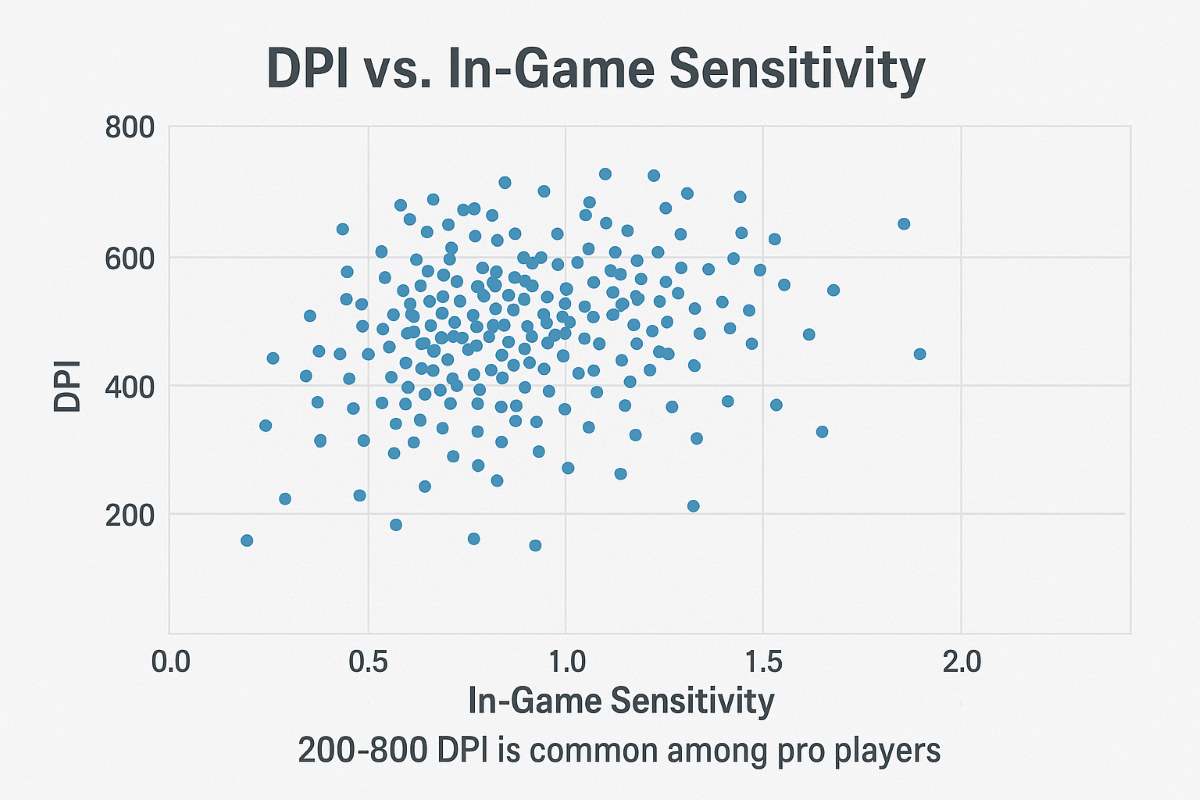
Mouse settings follow clear professional patterns. eDPI (effective DPI) — calculated by multiplying DPI × in-game sensitivity — determines actual aim speed. Most professionals use 400 or 800 DPI. The 400 DPI standard originated when lower values reduced sensor jitter, providing consistent tracking. Modern sensors handle higher DPI cleanly, but muscle memory keeps many at 400.
In-game sensitivity typically ranges 0.7-2.5 among professionals. The competitive sweet spot sits between 600-1200 eDPI. Lower values favor precision and headshot accuracy. Higher values enable faster reactions and wider flicks. AWPers often use lower eDPI for steady scopes, entry fraggers prefer higher for quick clearing.
Mouse acceleration must be disabled. It makes cursor movement depend on speed, breaking muscle memory. CS2 enforces raw input by default, bypassing Windows settings.
Polling rate should be 1000Hz (1ms reporting intervals). Zoom sensitivity default is 1.0, though many AWPers use 0.8-1.0 for finer scope control.
Professional Player DPI Analysis
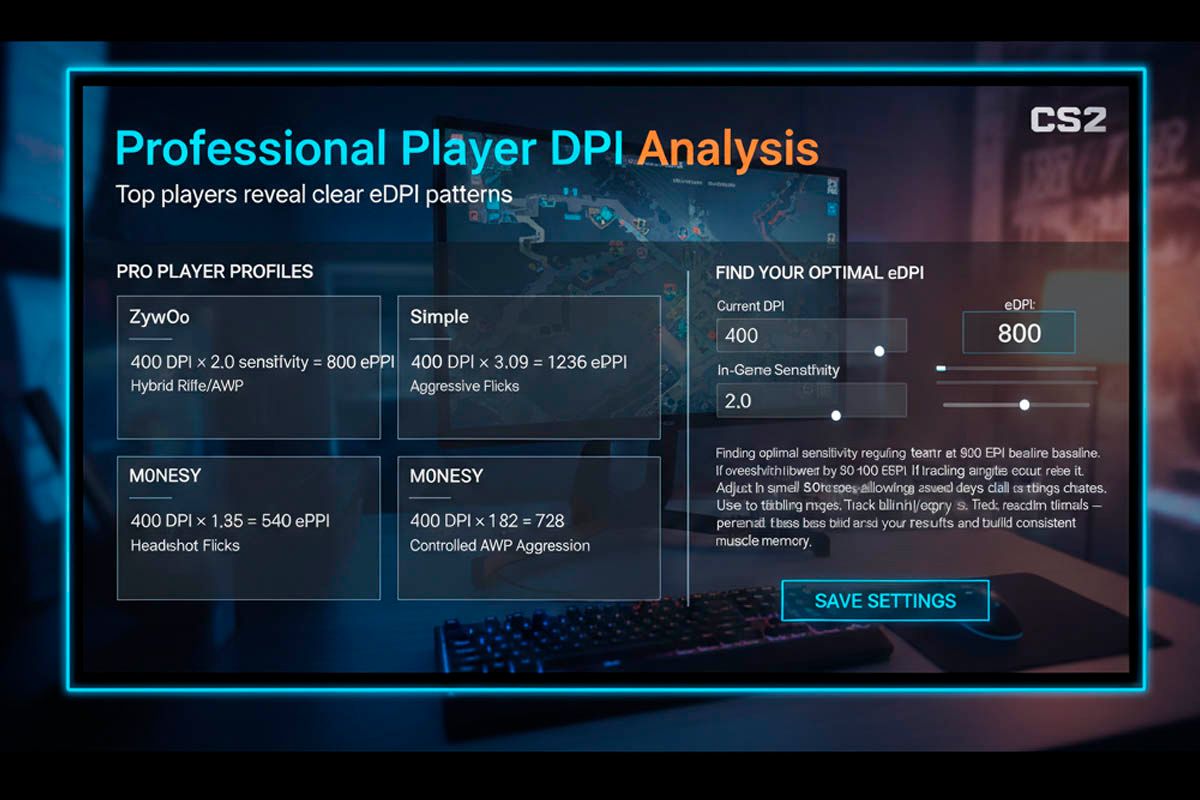
Top players reveal clear eDPI patterns. ZywOo uses 400 DPI × 2.0 sensitivity = 800 eDPI, perfectly balanced for hybrid rifle/AWP play. S1mple runs 400 DPI × 3.09 = 1236 eDPI, higher for aggressive flicks. NiKo's 400 DPI × 1.35 = 540 eDPI ranks lowest, optimized for headshot precision. M0NESY uses 400 DPI × 1.82 = 728 eDPI for controlled AWP aggression.
Finding optimal sensitivity requires testing. Start at 800 eDPI baseline. If overshooting targets, lower by 50-100 eDPI. If tracking struggles occur, raise it. Adjust in small 50 eDPI steps, allowing several days between changes.
Use aim training maps to dial settings faster. Track accuracy and reaction times at different sensitivities. Don't blindly copy professionals — personalize based on your results and build consistent muscle memory.
Crosshair Configuration and Customization
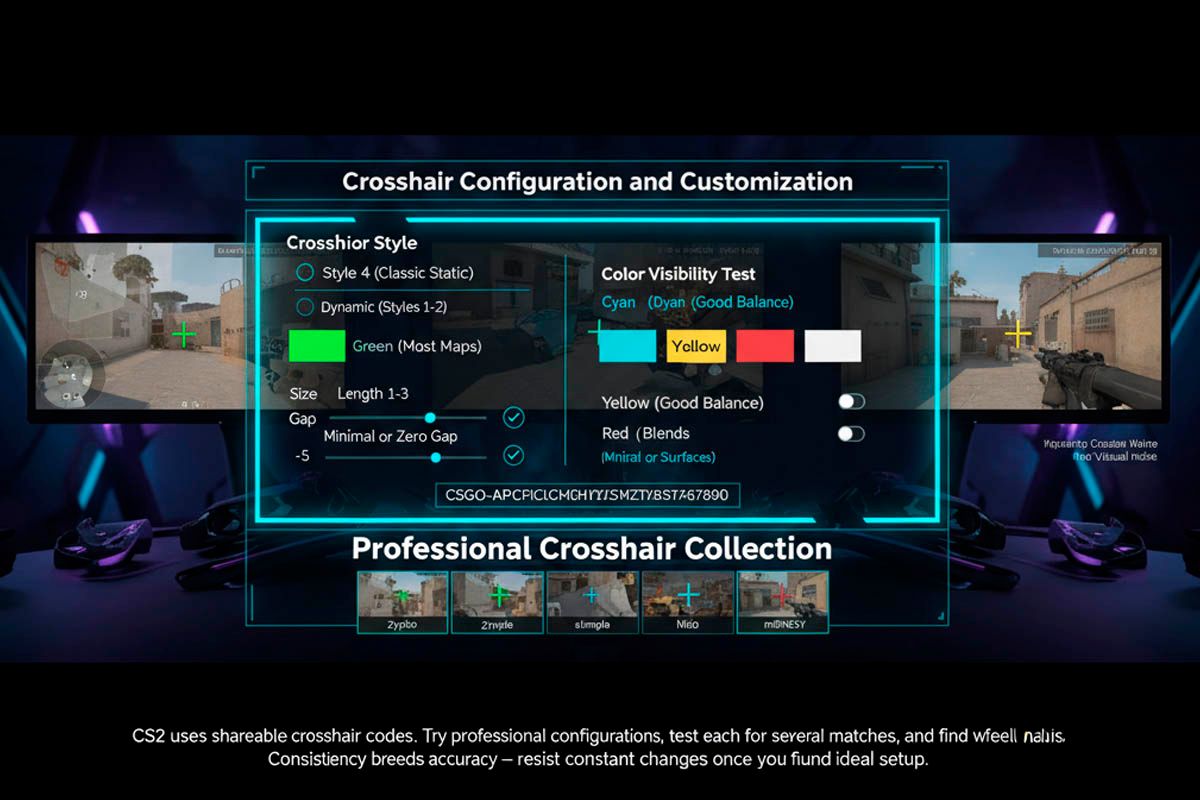
Crosshair style determines behavior. Style 4 (classic static) dominates professional configs, staying consistent regardless of movement or shooting. Dynamic crosshairs (styles 1-2) show weapon inaccuracy but add visual noise during fights.
Color choice affects visibility. Green contrasts well on most maps, cyan excels on Dust2, yellow provides good balance. Red blends with blood, white disappears on bright surfaces. Most professionals choose green for reliability.
Size and gap control dimensions. Length 1-3 keeps crosshairs compact, thickness 0-1 for precision. Gap determines center space — negative values eliminate gaps, positive creates separation. Most professionals prefer minimal or zero gap for exact aiming points.
Outline adds black borders, increasing visibility on complex backgrounds. Center dot provides precise aiming points but most professionals disable it for cleaner views.
CS2 uses shareable crosshair codes. Try professional configurations, test each for several matches, and find what feels natural. Consistency breeds accuracy — resist constant changes once you find your ideal setup.
Gaming Monitor and Display Optimization
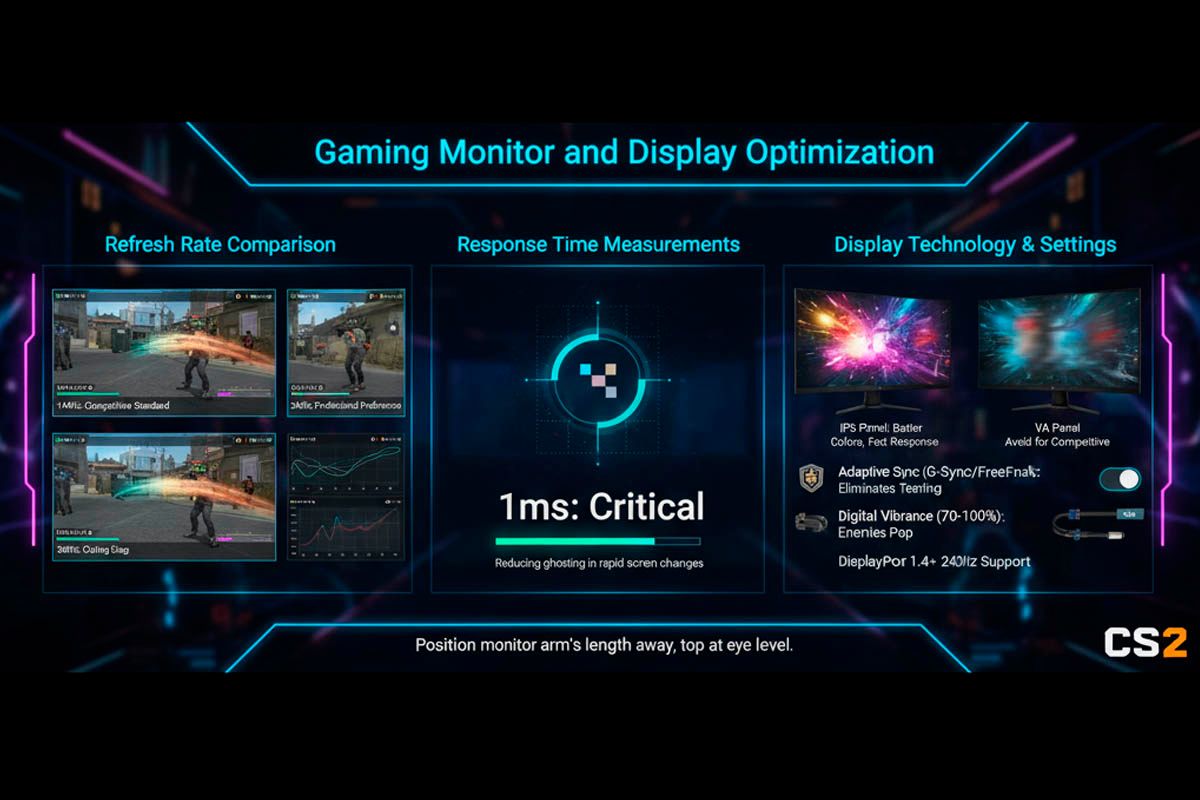
Monitor refresh rate directly impacts competitive performance. 144Hz is the competitive standard, 240Hz is professional preference, 360Hz represents cutting edge. Higher refresh rates reduce motion blur and improve target tracking accuracy during fast movements.
Response time at 1ms is critical, reducing ghosting in rapid screen changes. IPS panels offer better colors with competitive response times on modern gaming monitors. Avoid VA panels for competitive play due to slower response and smearing.
Adaptive sync (G-Sync/FreeSync) eliminates screen tearing but can add slight input lag. Test with and without to see if smoothness benefits outweigh latency. Increase digital vibrance to 70-100% in NVIDIA Control Panel or AMD Radeon Software saturation slider, making enemies pop against backgrounds without performance cost.
Use DisplayPort 1.4+ for 240Hz support. Position monitor arm's length away, top at eye level, reducing neck strain during long sessions.
CS2 Radar and HUD Optimization
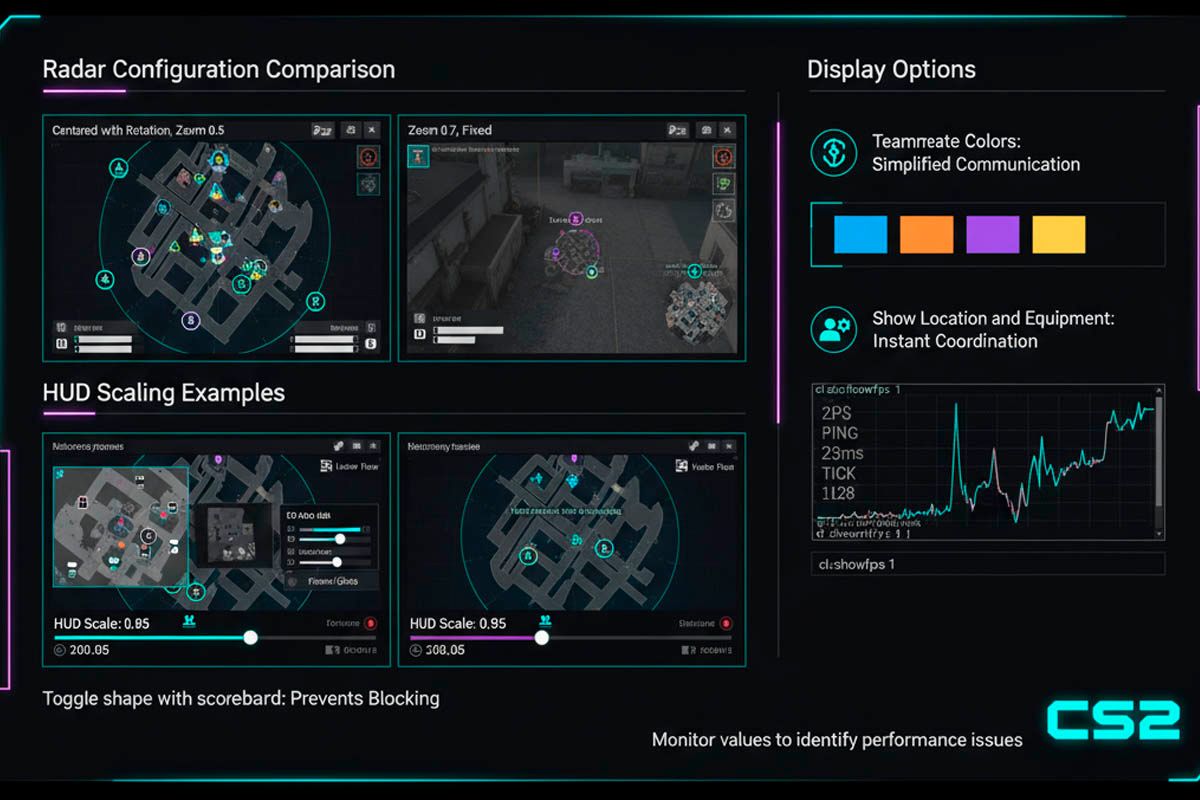
Radar configuration provides constant map awareness. Enable radar centering with rotation for consistent spatial orientation. Set radar zoom to 0.5-0.7, balancing local detail with strategic overview. Lurkers prefer wider views, site anchors zoom tighter.
HUD scale at 0.85-0.95 keeps information visible without covering action. Toggle shape with scoreboard prevents blocking during checks. Enable "show location and equipment" to see teammate positions and loadouts instantly, coordinating strategies without verbal confirmation.
Teammate colors in competitive assign each player a distinct color and letter. Call "yellow push" or "blue needs help" for simplified communication that works with language barriers. Colors appear on models and radar simultaneously.
Net graph displays FPS, ping, and tick rate. Enable with cl_showfps 1 in console. Monitor values to identify performance issues — FPS drops signal graphic adjustments needed, ping spikes indicate network problems. Consistent tracking prevents mid-match surprises.
Advanced Performance Optimization
System-level tweaks beyond in-game settings dramatically boost CS2 FPS optimization. Start with Steam launch options: -console -high -fullscreen -nojoy +fps_max 0. Create autoexec.cfg in your CS2 cfg folder with essential commands like cl_showfps 1, rate 786432, and cl_interp 0 for network optimization.
Performance Optimization Checklist
- ✓ NVIDIA Control Panel: Maximum Performance mode, Ultra Low Latency
- ✓ AMD Radeon: Anti-Lag enabled, Chill/Boost disabled
- ✓ Windows: High Performance power plan, GPU scheduling tested
- ✓ Game Mode: Test enabled vs disabled on your system
- ✓ RAM: Enable XMP profile in BIOS for rated speed (3200MHz+)
- ✓ Storage: Install CS2 on SSD (NVMe preferred)
- ✓ Pagefile: Set to system-managed or 1.5x RAM size
- ✓ Background apps: Close Discord, Chrome, Spotify before playing
- ✓ Temperature monitoring: Keep CPU <85°C, GPU <83°C
- ✓ Network: Wired connection, QoS enabled on router
System Requirements vs FPS Performance
| Component | Minimum (60 FPS) | Recommended (144 FPS) | High-End (240+ FPS) |
|---|---|---|---|
| CPU | i5-9600K | i7-11700K | i9-12900K |
| GPU | GTX 1660 | RTX 3060 | RTX 4070+ |
| RAM | 16GB 2666MHz | 16GB 3200MHz | 32GB 3600MHz |
| Storage | SATA SSD | NVMe SSD | Gen4 NVMe |
Overclocking CPU/GPU gains 10-20% FPS but requires adequate cooling and stability testing. Enable auto-boost features for safe gains. Network optimization through reduced ping matters too: use wired connections, set rate 786432 in console, and enable router QoS prioritizing CS2 traffic for reduced packet loss.
Professional Player Settings Analysis
Professional configurations reveal tested strategies refined through years of competition. Analyzing top HLTV players shows clear patterns: professionals use varied resolution preferences based on playstyle, 85% use 400 DPI, and eDPI ranges from 540 to 1236 depending on role.
Complete Professional Player Settings Database
| Player | Team | Resolution | Aspect Ratio | DPI | Sensitivity | eDPI | Role |
|---|---|---|---|---|---|---|---|
| donk | Spirit | 1920×1080 | 16:9 | 400 | 2.1 | 840 | Rifler |
| s1mple | NAVI | 1920×1080 | 16:9 | 400 | 3.09 | 1236 | Hybrid |
| ZywOo | Vitality | 1920×1080 | 16:9 | 400 | 2.0 | 800 | Hybrid |
| NiKo | G2 | 1280×960 | 4:3 Stretched | 400 | 1.35 | 540 | Rifler |
| device | Astralis | 1280×960 | 4:3 Stretched | 400 | 1.9 | 760 | AWPer |
| m0NESY | G2 | 1920×1080 | 16:9 | 400 | 1.82 | 728 | AWPer |
Tournament Requirements Checklist
- ✓ Stable 240+ FPS minimum
- ✓ Fullscreen mode mandatory
- ✓ No unauthorized overlays (ESL, BLAST, PGL standard)
- ✓ NVIDIA Reflex or AMD Anti-Lag allowed
- ✓ No third-party injectors or ReShade
- ✓ Standard mouse drivers only
The transition from CSGO to CS2 saw minimal changes — most professionals kept identical settings, proving consistency matters more than chasing optimal numbers. Professional settings influence amateur trends significantly. When ZywOo dominates with 800 eDPI, thousands of players test similar values.
However, copying exactly doesn't work for everyone. Your hand size, grip style, and skill level demand personalization. Use professional configs as starting points, not final answers. These optimized setups contribute directly to match outcomes that esports enthusiasts follow closely, including those engaging with counter strike bets to add excitement while watching professionals leverage refined configurations for tournament victories.
Conclusion and Key Takeaways
Optimizing CS2 settings creates measurable competitive advantages. Proper configuration reduces input lag, boosts FPS, and enhances audio clarity.
Prioritize video settings for maximum frame rate (disable motion blur, medium shadows, 4X MSAA), audio for positional awareness (crisp EQ, stereo headphones), and mouse optimization within 600-1200 eDPI. System tweaks through NVIDIA Control Panel or AMD Radeon Software amplify gains.
Settings provide the foundation, but practice matters most. Revisit configurations as Valve Corporation patches CS2. Build your setup methodically, test systematically, and commit to consistency.