Proper CS2 pro settings can improve reaction time by up to 15ms — often the difference between winning and losing. In the evolving CS2 meta, a professional CS2 configuration is essential for consistent results. This guide explores top stars like donk, s1mple, ZywOo, NiKo, device, NAF, and Twistzz, covering competitive CS2 setup essentials: DPI analysis, sensitivity tuning, hardware choices, and team-driven CS2 esports settings, plus a step-by-step implementation framework.
Why CS2 Pro Settings Matter in Competitive Gaming
Correct CS2 tournament settings deliver measurable results. Adjusted configs improve reaction time, aiming consistency, and overall match outcomes. Data from top events shows that even a 10–15 millisecond advantage can decide a clutch situation. Players with optimized sensitivity and crosshair placement often secure critical rounds under pressure.
The shift from CS:GO to CS2 brought changes in graphics, movement, and shooting mechanics, making old setups less effective. There is no universal solution — professional gaming performance depends on fine-tuning. Well-chosen settings accelerate skill development and create a real competitive advantage CS2, especially in high-stakes matches.
Top CS2 Professional Players and Their Complete Settings
Every professional player config tells a story of adaptation, precision, and consistency. Studying how the world’s best calibrate their setups helps players understand the foundations of competitive success. From donk CS2 settings that powered Team Spirit’s meteoric rise, to the legendary s1mple CS2 config, to the refined balance in ZywOo CS2 settings, these configurations highlight how sensitivity, DPI, resolution, and hardware combine into world-class performance. The following breakdown shows not only the raw numbers, but also how each pro’s choices reflect their playstyle and team role.
donk CS2 Settings
Danil “donk” Kryshkovets became a phenomenon in 2024, earning record-breaking MVP medals at just 17 years old. His rapid ascent with Team Spirit put him at the center of the esports' scene. The donk CS2 settings are simple yet deadly effective: DPI 400, Sensitivity 2.1, producing an eDPI of 840. These values give him a balance between smooth crosshair control and lightning-fast adjustments — a key to his rifling dominance.
The Team Spirit player config is completed by a 1920×1080 resolution, 240 Hz monitor refresh rate, and a 16:9 aspect ratio that provides wider peripheral vision. His crosshair remains static, avoiding distractions in tense duels. This precise setup showed its strength in IEM Katowice 2024 and BLAST Premier, where his sharp aim defined Team Spirit’s victories.
As for hardware, donk relies on the Logitech G Pro X Superlight mouse, a large control-style mousepad, and premium peripherals that ensure minimal latency. The blend of disciplined practice and finely tuned donk sensitivity makes his setup a benchmark for aspiring riflers.
s1mple CS2 Config
Oleksandr “s1mple” Kostyliev is often called the CS:GO GOAT, and his transition to CS2 proves why that reputation endures. The s1mple CS2 settings reflect years of refinement: DPI 400, Sensitivity 3.09, for an eDPI of 1236. This higher sensitivity suits his hybrid style of AWP and rifle play, enabling snap adjustments in unpredictable situations.
Historically, he favored 4:3 stretched in CS:GO. Today, when fans ask what res does s1mple use, the answer is a mix: he often keeps 1280×960 stretched for familiarity but adapts to 1920×1080 native when the map demands wider vision. Within NAVI, his config aligns with structured tactics, giving him freedom to create impact while staying in sync with the team.
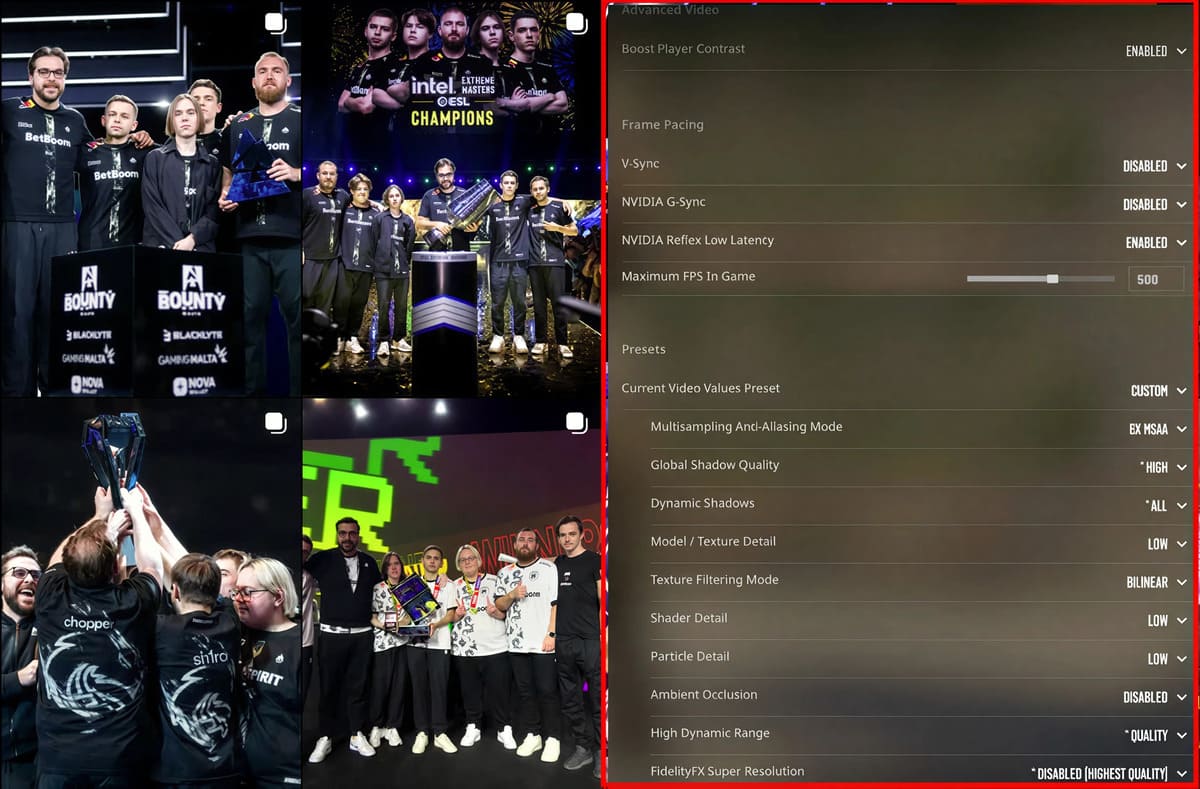
His video settings emphasize competitive clarity: low textures, disabled shadows, and sharpened contrast. Crosshair design is minimalist, built to avoid obstruction while tracking moving targets. Adjustments between CS:GO and CS2 highlight his ability to evolve without losing identity, making his NAVI player settings a template studied across the scene.
ZywOo CS2 Pro Settings
Mathieu “ZywOo” Herbaut, crowned the 2023 best player, continues to dominate CS2 with Team Vitality. His ZywOo CS2 settings are refined for flexibility: DPI 400, Sensitivity 2.0, creating an eDPI of 800. This balanced approach supports his hybrid style, equally deadly with AWP or rifle.
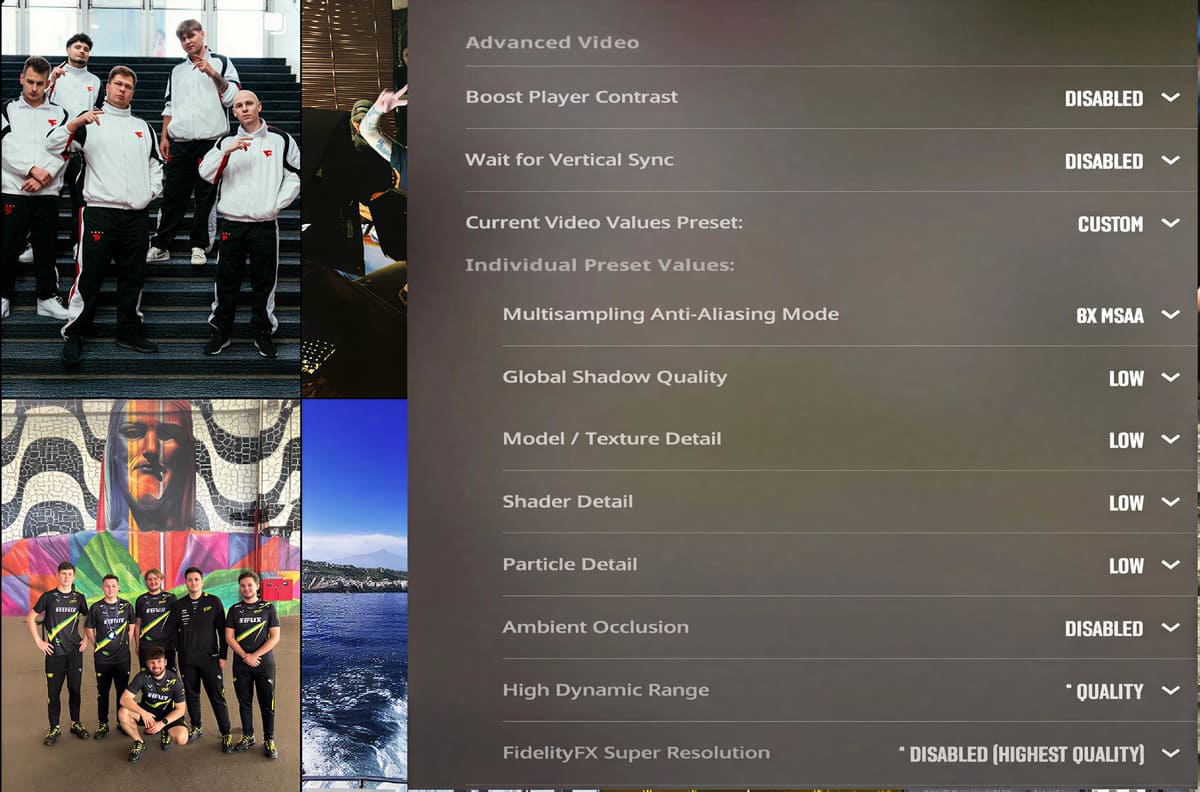
As part of the Vitality player config, he uses 1920×1080 resolution and optimized graphics settings that boost model visibility without overloading the system. His crosshair is static and highly visible, and his audio setup prioritizes footstep and positional clarity, enhancing his already sharp game sense.
Vitality’s tactical system gives ZywOo space to adapt, and his configuration maximizes that freedom. Recent LAN events proved its value, with his precision staying consistent across long tournaments. This level of stability not only secures results for Vitality but also draws strong attention from the competitive betting audience. Fans and analysts often track his performances closely in the Counter Strike bets market, where his reliability makes him one of the most trusted stars to watch.
NiKo CS2 Settings
Nikola “NiKo” Kovač remains one of the legendary CS2 players, known for his unmatched rifling precision. The NiKo CS2 settings underline that role: DPI 400, Sensitivity 1.35, yielding an eDPI of 540. Such low sensitivity allows maximum control for pixel-perfect sprays and headshot consistency.
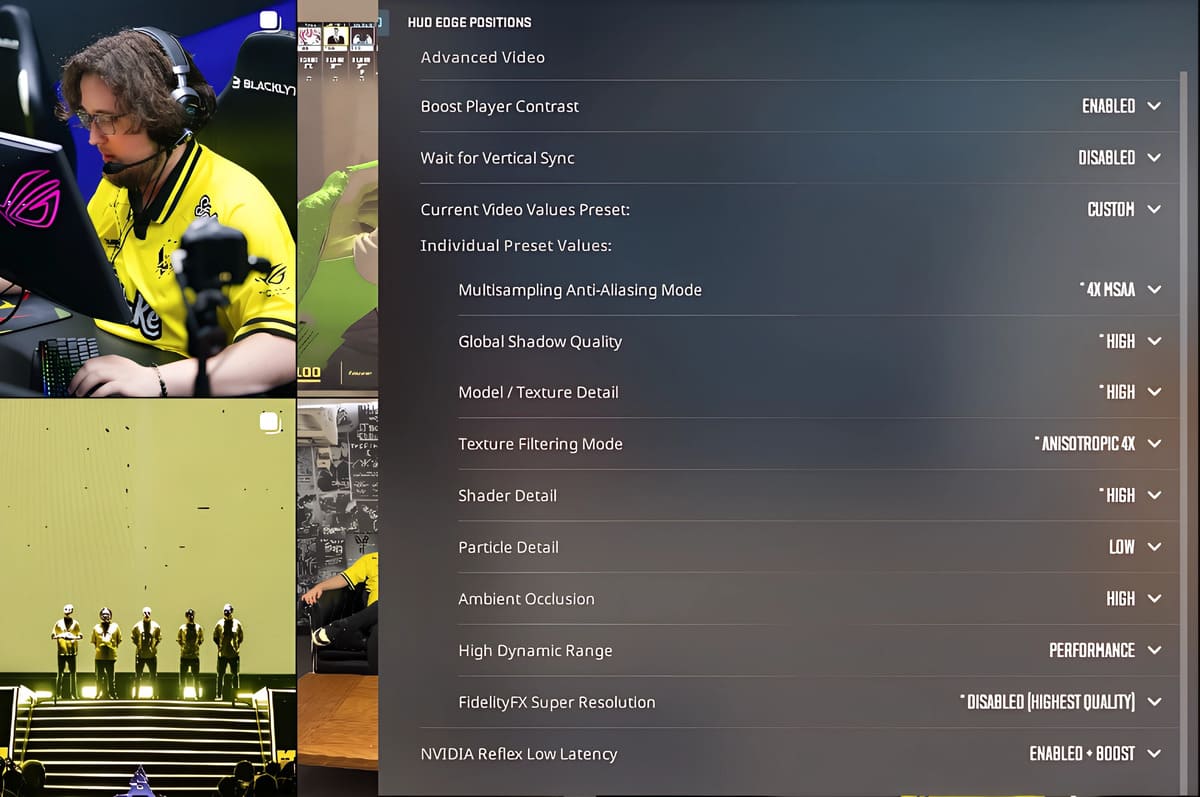
Within the G2 esports config, NiKo’s settings complement the team’s structured yet aggressive style. His crosshair is tight and clear, designed for pinpoint accuracy in duels. Video settings prioritize long-range visibility, helping him lock down aim in open-space maps. Paired with high-end Logitech peripherals, this setup showcases why NiKo is still considered one of the most feared riflers in the game.
device CS2 Config
Peter “device” Rasmussen is a decorated CS player, famous for his AWP consistency across more than a decade. His device CS2 settings maintain that legacy: DPI 400, Sensitivity 1.9, giving an eDPI of 760. His scoped sensitivity is carefully adjusted to keep flicks steady at long range, critical for AWP dominance.
The Astralis player config focuses on tactical synergy. Resolution is tuned for sharp image clarity, and display preferences remain consistent with earlier years, emphasizing stability. His reliance on a proven setup demonstrates how longevity and discipline can extend a career at the highest level. These legendary AWP settings continue to deliver, even as CS2 evolves.
NAF & Twistzz Team Liquid Settings
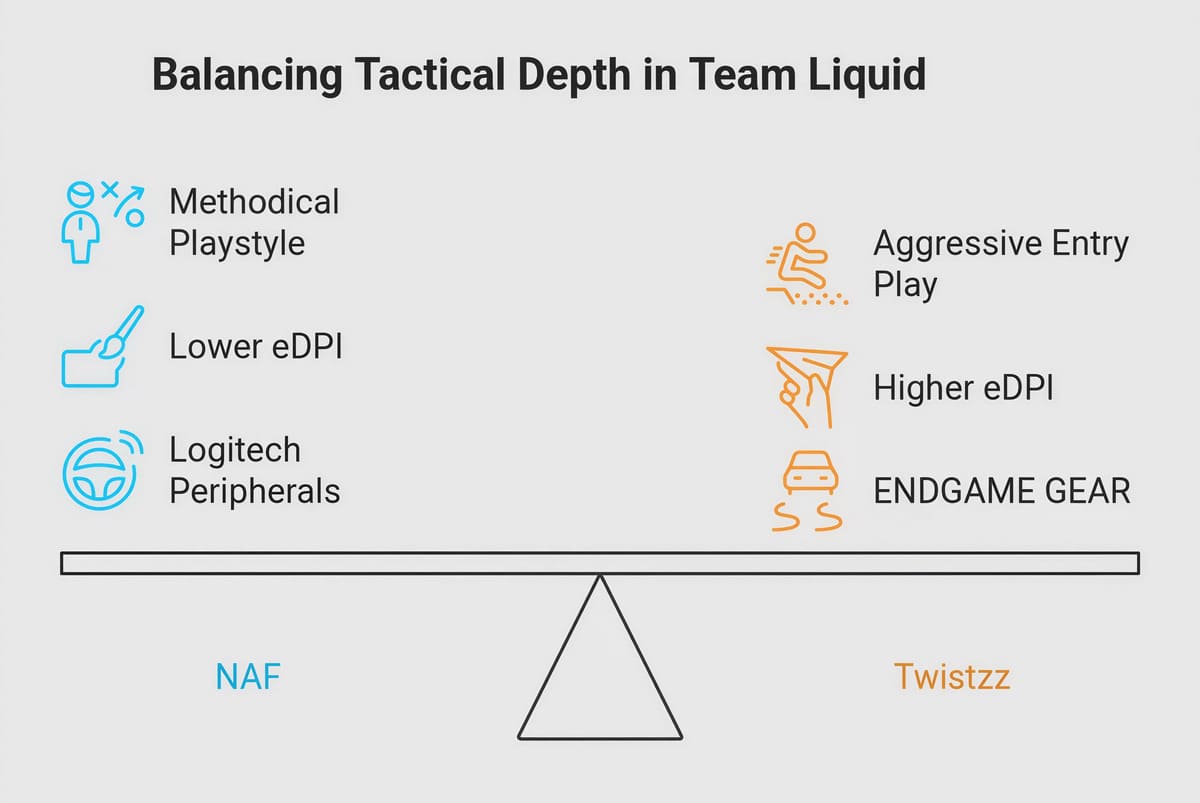
Team Liquid’s North American duo showcases two distinct styles within the same squad. NAF CS2 settings are tuned for support and lurk roles: DPI 800, Sensitivity 0.9, for eDPI 720. This conservative setup favors methodical play, perfect for anchoring sites and clutch scenarios.
By contrast, Twistzz CS2 config is designed for aggressive entry play: DPI 400, Sensitivity 2.2, for eDPI 880. His settings encourage fast reactions and rapid aim adjustments. These two approaches highlight the tactical depth in team liquid player settings.
Hardware preferences also differ: NAF remains loyal to Logitech peripherals, while Twistzz often experiments with ENDGAME GEAR, reflecting his mechanical focus. Together, these NA CS2 legends symbolize North America’s contribution to international CS2. Their complementary configs allow Team Liquid to remain competitive against European dominance.
Professional CS2 DPI and Sensitivity Analysis
When analyzing professional setups, one clear trend emerges: CS2 pros use 400 DPI more than any other option. Around 85% of professional players stick to 400 DPI, and this preference hasn’t changed with the move from CS:GO to CS2. The reason is technical — modern mouse sensors track with the highest accuracy at 400 DPI, creating consistent movement and reliable muscle memory.
But DPI alone doesn’t define aim. What matters most is eDPI calculation, the product of DPI × in-game sensitivity. This metric shows the true “feel” of a player’s aim. For example, donk uses 400 DPI with 2.1 sensitivity, giving him 840 eDPI. NiKo prefers 400 DPI with 1.35, which equals 540 eDPI — much lower, optimized for headshot precision. By contrast, s1mple plays at 1236 eDPI, offering greater flick speed.
What DPI most FPS pros use beyond 400? A smaller group uses 800 DPI, like NAF, who combines it with a low sensitivity for a moderate 720 eDPI. Very few go up to 1600 DPI, as it can introduce instability, though some players experiment with it for rapid movements.
Across the scene, CS2 pro sensitivity settings usually fall between 1.0–2.2. Combined with the universal 1000 Hz polling rate, these ranges create a smooth, predictable input.
For personal optimization, players should test across aim training maps, track consistency over sessions, and adapt sensitivity gradually. Precision comes not from copying exact numbers, but from finding stable eDPI ranges that suit individual hand movement and control style.
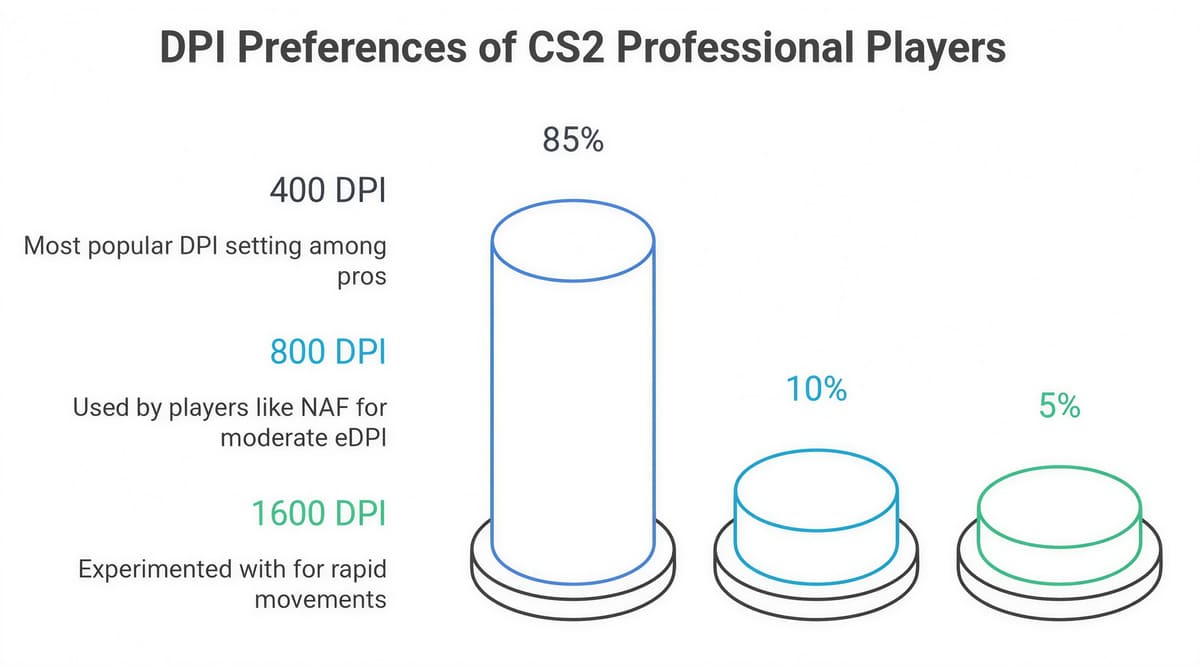
Table: Complete DPI/Sensitivity/eDPI comparison matrix
| Player | DPI | Sensitivity | eDPI | Notes |
|---|---|---|---|---|
| donk | 400 | 2.1 | 840 | Balanced control for rifling, Team Spirit |
| s1mple | 400 | 3.09 | 1236 | High eDPI for hybrid rifle/AWP, NAVI |
| ZywOo | 400 | 2.0 | 800 | Flexible setup for hybrid play, Vitality |
| NiKo | 400 | 1.35 | 540 | Low eDPI for headshot precision, G2 |
| device | 400 | 1.9 | 760 | AWP-focused config, Astralis |
| NAF | 800 | 0.9 | 720 | Support role, higher DPI with low sens |
| Twistzz | 400 | 2.2 | 880 | Entry-fragger setup, Team Liquid |
NiKo’s 540 eDPI represents the lowest value among these pros, favoring precise rifle control and headshot accuracy. At the other end, s1mple’s 1236 eDPI highlights a faster, more flexible style suited for hybrid AWPing and quick flicks, showing how different roles demand unique sensitivity choices.
CS2 Pro Video and Display Settings Breakdown
When studying CS2 pro video settings, one of the clearest patterns is resolution preference. About 70% of players stick to 1920×1080, valuing sharpness and a wide field of view. Still, the debate “Do CS2 pros play 4:3?” remains relevant, as some choose stretched 1280×960 for larger models and simplified focus.
CS2 pro resolutions are always paired with high refresh rates. The current standard is 240Hz, but more pros are adopting 360Hz monitors, giving smoother motion tracking and reducing input lag. These refresh rate pros translate directly into more consistent aim in high-pressure matches.
Graphics settings are tuned for performance: low textures, simplified shaders, and minimal anti-aliasing for maximum visibility. Brightness and digital vibrance are often pushed above defaults to make enemy models stand out. Most competitors run in fullscreen for stability, while windowed borderless is rare due to small latency costs.
Monitor positioning also matters: pros keep the screen close, slightly elevated, to reduce eye strain and support fast tracking.
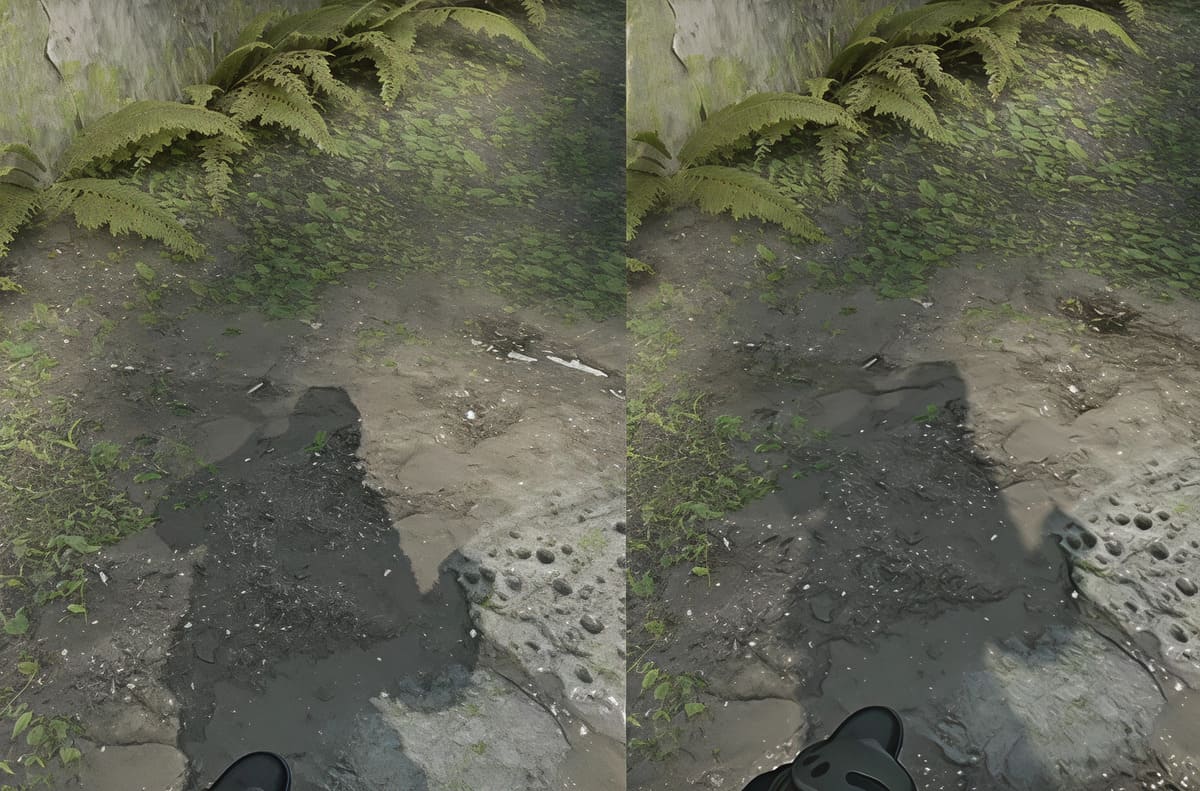
Table: CS2 Pro Display Settings Matrix
| Player | Resolution | Aspect Ratio | Refresh Rate | Graphics Quality |
|---|---|---|---|---|
| donk | 1920×1080 | 16:9 | 240Hz | Low/Performance |
| s1mple | 1280×960 | 4:3 Stretched | 240Hz | Low/Performance |
| ZywOo | 1920×1080 | 16:9 | 240Hz | Low/Performance |
| NiKo | 1280×960 | 4:3 Stretched | 240Hz | Low/Performance |
| device | 1920×1080 | 16:9 | 240Hz | Low/Performance |
| NAF | 1920×1080 | 16:9 | 240Hz | Low/Performance |
| Twistzz | 1920×1080 | 16:9 | 360Hz | Low/Performance |
Most professionals prefer 1920×1080 at 240Hz, balancing clarity and smooth performance. Still, players like s1mple and NiKo prove that 4:3 stretched remains popular, showing resolution choice depends on comfort and role. Across all configs, the guiding principle is the same: keep graphics low to ensure stability, maximum FPS, and clear visibility of enemy models.
Professional Gaming Hardware Used by CS2 Pros
Top players depend on optimized professional gaming hardware to stay consistent in high-pressure matches. From the dominance of Logitech mice to NVIDIA Reflex CS2 technology, these tools shape modern competitive play.
Gaming Mice: Logitech Dominance and ENDGAME GEAR Innovation
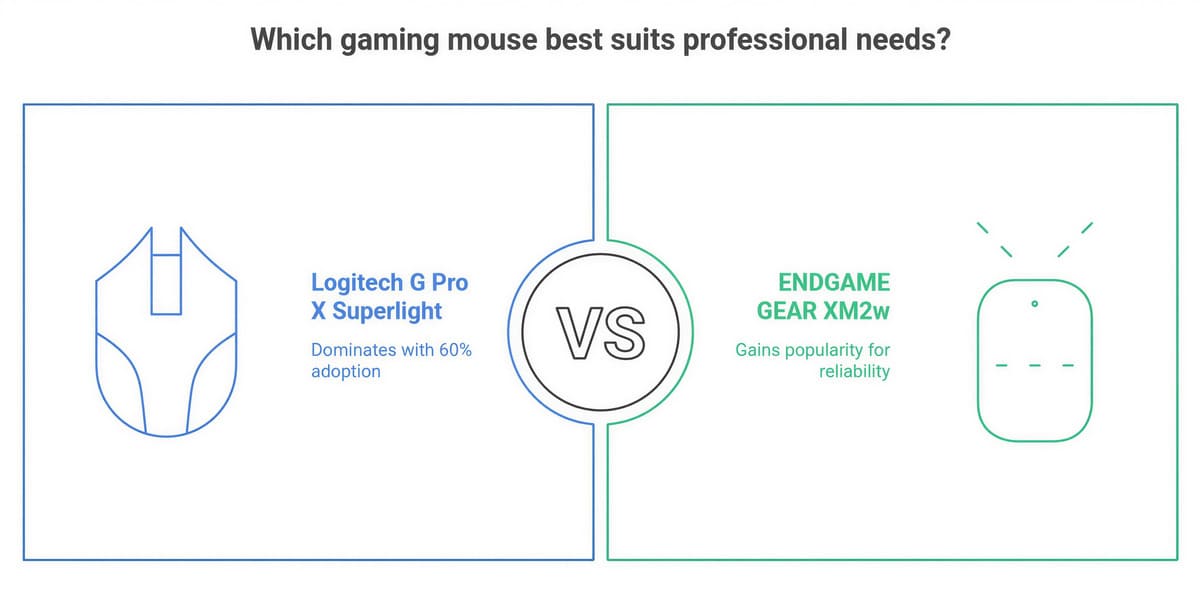
The Logitech G Pro X Superlight is the most common professional gaming mouse, holding over 60% adoption among mouse CS2 pros. Its 63g weight, HERO 25K sensor, and proven durability explain why so many rely on it. The balance of speed and control makes it a natural fit for precision aim.
The ENDGAME GEAR CS2 community increasingly favors the XM2w model, known for mechanical reliability and a design that suits claw or fingertip grips. Both Logitech and ENDGAME offer 1000Hz polling and wide DPI ranges, but Logitech wins on global availability and price stability. Mousepad choice also matters: most pros use large cloth pads for consistent glide.
NVIDIA Technology in Professional CS2
Low latency is critical, and NVIDIA Reflex CS2 cuts input delay by 10–15ms, now standard in competitive gaming technology. Most tournaments require Reflex-ready setups, pairing the feature with high refresh rate monitors (240Hz or 360Hz) for smoother tracking.
Basic CS2 graphics optimization includes enabling Reflex in-game, using updated drivers, and disabling overlays that add delay. While AMD offers alternatives, Reflex remains the benchmark in low latency gaming. For players building competitive rigs, Reflex support is as important as raw GPU power.
Advanced CS2 Pro Graphics Settings and Optimization
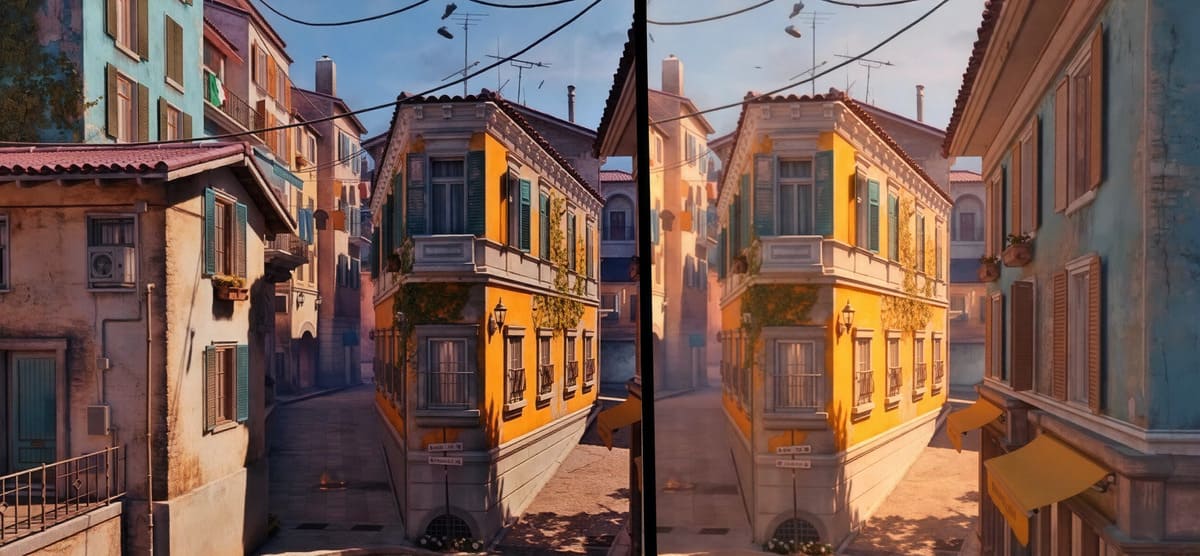
Top players rely on carefully tuned CS2 pro performance settings to keep frame rates stable while maintaining maximum visibility. One of the biggest choices is anti-aliasing. Most pros use MSAA 4x, which smooths edges without losing clarity, while FXAA is rarely chosen due to blurriness that can obscure opponents.
Texture filtering also matters. Many graphics settings pros recommend Anisotropic 16x, since it keeps distant textures sharp, although it slightly reduces FPS. Shadows are usually set to medium or high, as they reveal enemy positions, even if this lowers performance. In contrast, motion blur is universally disabled, as it disrupts target tracking during fast movements.
Shader settings are minimized to prevent visual clutter, while model and texture details are kept low for clearer silhouettes. Advanced launch options and console commands, such as -novid, -high, or custom FPS caps, are widely used for competitive optimization.
Finally, FPS stability is crucial. Pros recommend maintaining well above 240 FPS to fully match monitor refresh rates, with GPU adjustments based on hardware capacity.
CS2 Pro Audio Settings for Competitive Advantage
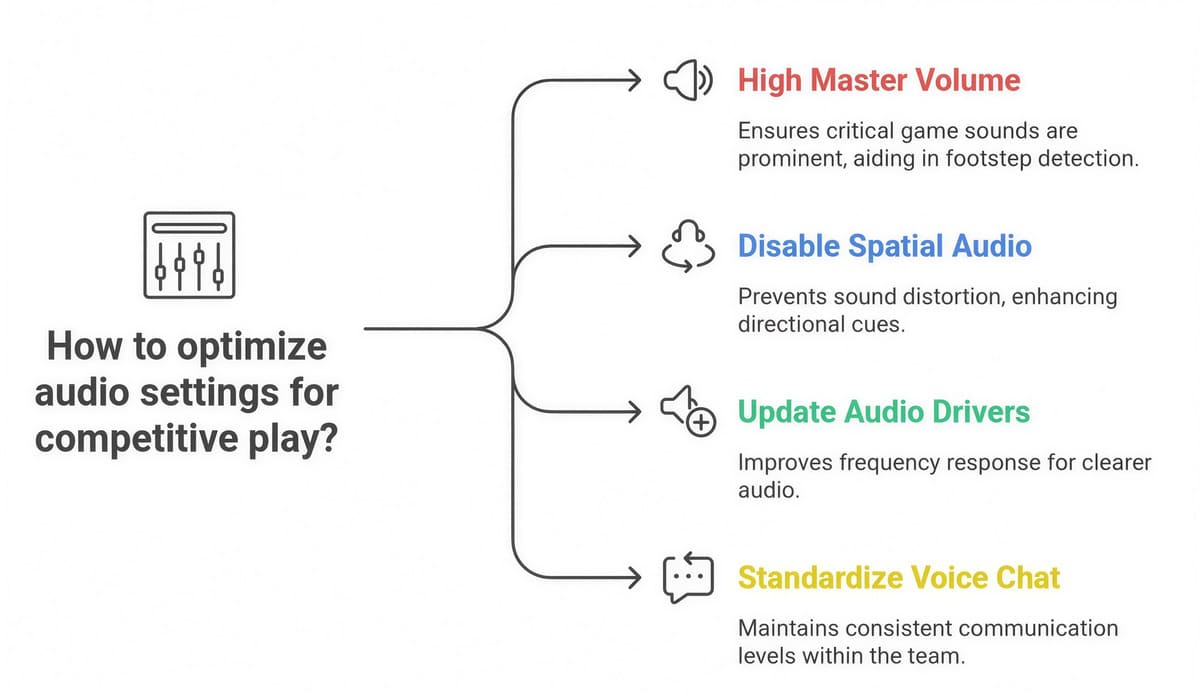
Sound is as important as visuals in Counter-Strike, and proper CS2 sound optimization can decide a round. Professionals rely on fine-tuned audio settings pros recommend ensuring clear detection of footsteps and precise directional cues. The best setting hear footsteps CS2 is achieved by keeping master volume high while lowering music and ambient noise, leaving only critical game sounds.
Nearly 99% of players use high-quality headphones rather than speakers, paired with Windows tweaks like disabling spatial audio and enabling exclusive mode. In-game settings adjust voice scale for clear comms and reduce distractions from unnecessary sound effects.
For competitive audio CS2, drivers must be updated, with some using software EQ for better frequency response. Teams also standardize voice chat levels to avoid communication gaps. At the same time, pros take hearing protection seriously, using moderate volumes to prevent long-term damage.
Professional CS2 Crosshair Configurations
Crosshair setup is one of the most personal aspects of a config, yet clear patterns emerge in CS2 pro crosshair settings. Most professionals favor static crosshairs, which provide stability under recoil and improve consistency. Still, a minority of CS2 pro use dot crosshair for maximum precision, trading visibility for a cleaner sightline.
Colors are chosen for contrast — bright green, cyan, or yellow are common to stand out against maps. Thickness, gap, and outline depend on playstyle: riflers prefer compact designs for close aim, while AWPers may use wider spacing for visibility.
Crosshair optimization usually follows testing on aim maps, with copy-paste codes widely shared, so players can experiment with pro setups. Each professional has a distinct philosophy, ranging from minimalist dots to classic outlines.
How to Apply Pro Settings to Your CS2 Setup
- Benchmark your current play. Record FPS, K/D, HS%.
- Pick a pro close to your role and hardware. Apply pro settings exactly.
- Compute eDPI. Run aim maps for 30 minutes.
- Find perfect sensitivity CS2: adjust ±0.1 steps. Track accuracy and misses.
- Copy crosshair and video presets. Build a stable competitive CS2 setup.
- Hardware check: 1000 Hz polling, 240 Hz monitor. Use budget mice and pads if needed.
- Practice plan: same settings for 7–14 days. Log results each session.
- Troubleshoot: overshoot → lower eDPI; undershoot → raise eDPI; FPS drops → reduce MSAA, shadows.
- Personalize for grip, hand size, and role.
- Goal: consistent control and perfect aim CS2, not cloning numbers.
Conclusion & Key Takeaways
This CS2 pro settings conclusion highlights several clear trends: the dominance of 400 DPI, widespread 1920×1080 resolutions, and standardized hardware choices like Logitech mice and NVIDIA Reflex-ready GPUs. Still, the best professional gaming configuration is only a starting point — true progress comes from testing, gradual customization, and consistent practice. For competitive setup optimization, prioritize upgrades to your mouse and monitor for the biggest performance gains. Explore affiliate hardware links for recommended models and join the community in sharing settings for continuous improvement.